The number is drawn onto the page, not into a header
Word processors treat page numbers as a live field. Insert a page, and everything after it renumbers itself, because the number is a rule the document knows how to re-evaluate. A PDF has no such concept once it has been produced. There is no header region, no field, no rule left to re-evaluate: there are only pages and the marks on them.
So numbering a PDF means drawing. This tool sets up Helvetica once, then walks the pages and paints a short piece of text near the bottom of each one. The result is permanent and static in the same way ink is. Add a page later and the numbering will be wrong, because nothing recalculates.
What you gain from that is permanence. The number is part of the page from then on, not a field that can recalculate and not a setting a reader might apply differently. One nuance is worth stating. Helvetica is one of the fourteen fonts every PDF reader is expected to provide, so it is referenced by name rather than shipped inside the file, and a reader without it substitutes a near-identical sans-serif such as Arial. The position, size and colour of the number are fixed by the file; the exact shape of the digits can vary a little between readers. And because it is drawn as text rather than as a picture, it stays selectable and searchable, and any tool that extracts text from the document will pick it up.
Bottom center at 24 points, bottom right at 36
The Position select offers two anchors, and both of them are exact rather than approximate.
Either way, the text baseline sits 24 points up from the bottom edge of the page, which is a third of an inch. That is deliberately close to the trim, below where body text or a footer usually ends, and comfortably inside the printable area of any normal printer.
Bottom center centres the number horizontally by measuring the rendered width of the digits and splitting the remaining space. Because it measures rather than guesses, a document that runs from page 9 to page 10 keeps each number optically centred instead of drifting as the digit count grows.
Bottom right places the number 36 points, half an inch, in from the right edge, with the text ending at that line rather than starting from it. That right alignment is what keeps a column of numbers tidy down the edge of a stack of printed pages. It is the convention in court filings and many business documents, while centred numbering is the norm for reports, theses and books.
Starting the count somewhere other than 1
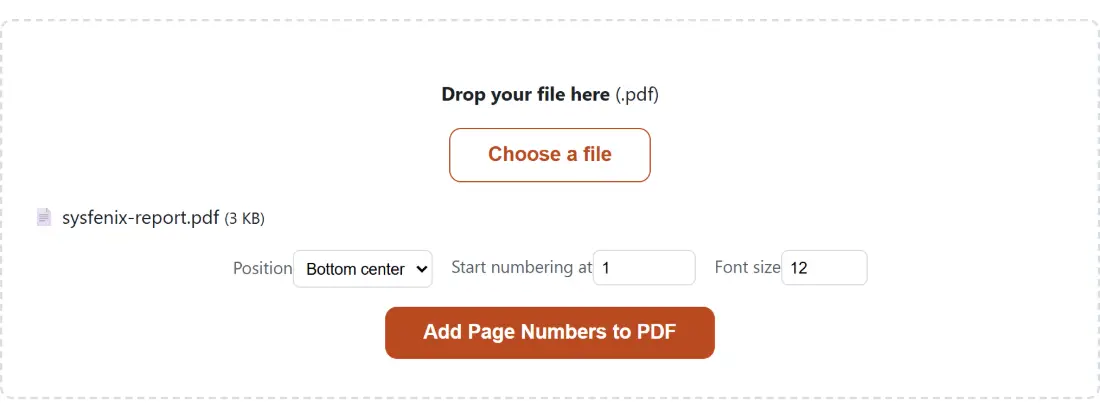
Start numbering at sets the label on the first physical page; every page after it counts up by one from there. The field accepts whole numbers from 0 upward.
The obvious use is continuing a sequence. A manual split into three files can be numbered 1, 47 and 93 so the printed set reads as one document. A volume two that follows a volume ending on page 212 starts at 213.
The less obvious use is compensating for front matter that was numbered elsewhere, or that you intend to strip later. Setting the start value to 0 is allowed and does exactly what it says: the first page is labelled 0 and the second is labelled 1, which is one way to hand a cover page a number nobody reads.
What the field cannot do is skip anything. It shifts the whole sequence; it never omits a page.
Every page is numbered, cover included
There is no “skip the first page” option, and this is the limitation most people run into. Each page in the document receives a label, including the title page, a blank separator or an appendix divider.
The workable route is to split the front matter off with Split PDF, number the body with the starting value you want, and put the cover back with Merge PDF. A range run produces one continuous stretch, so that means two split runs plus a merge, but it is also exactly how a printer would treat the job, and it gives you a cover you can replace later without renumbering anything.
If some of the pages should not be in the document at all, remove them with Delete PDF Pages before numbering, not after. Numbering last is almost always the right order of operations, because deleting or reordering pages afterwards leaves the printed numbers stranded out of sequence.
A document that already carries printed numbers
Nothing here inspects the page for existing numbering, and nothing can erase it. The label is simply appended to the page’s drawing instructions, which means it is painted after everything else and therefore over the top of it.
On a document that already has numbers in the same spot you get two overlapping figures, which looks like a defect rather than a correction. There is no way to remove the original ones, since they are part of the page’s content. If you got the numbering wrong the first time, go back to your unnumbered source rather than stamping over the result.
Where the old numbers sit in the other position, the two-anchor choice is genuinely useful: leave a centred original alone and add your own sequence at the bottom right, which is a common requirement when exhibit numbering has to coexist with a document’s own pagination.
Numbering the document
- Drop your PDF into the box above, or click Choose a file.
- Choose a Position: Bottom center for reports and theses, Bottom right for filings and business documents.
- Set Start numbering at if the first page should not read 1.
- Set a Font size between 8 and 36 points.
- Click Add Page Numbers to PDF. The bar advances page by page, with the last stretch reserved for saving.
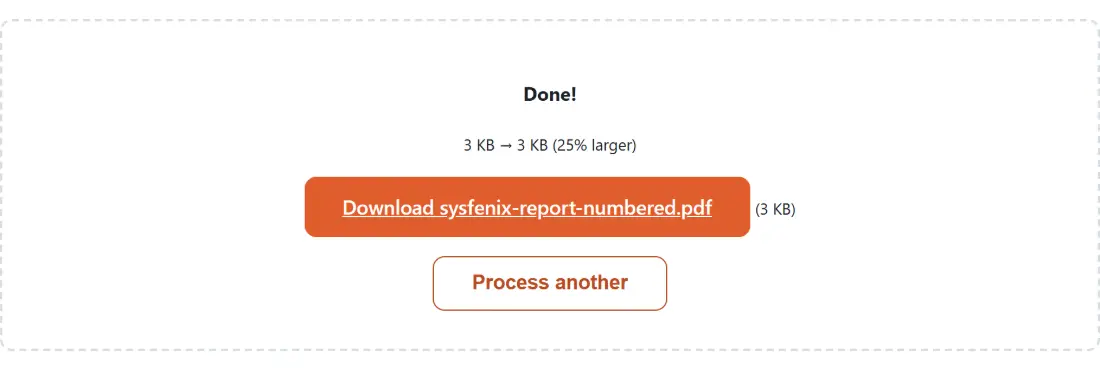
- Save the result, which comes back with
-numberedadded to the original name.
Rotated pages and the bottom edge
One case behaves differently from everything above. If a page carries a rotation flag, which scanners set whenever paper goes through the feeder sideways, the number is placed using the page’s underlying coordinate box rather than the orientation you see on screen. The viewer then rotates your label along with the rest of the page, so it appears turned on its side and against what looks like the wrong edge.
The fix is to clear that flag first, and the angle matters, because Rotate PDF adds to the existing value rather than replacing it and never rewrites the page content. Choose the angle that brings the flag back to zero, 270 for a page already marked 90, save, and number that file. The same advice applies to Reorder PDF Pages, since shuffling numbered pages produces a document whose labels no longer run in order.
All of this happens inside the browser tab, on a file that is read from your device’s memory and written back to your downloads folder. The documents that need numbering are often the ones under the most scrutiny, such as theses under embargo, court exhibits and signed contracts, and none of them are part of any request. Further reading: the best PDF tools, compared.