Deleting a page rebuilds the document around the survivors
There is no operation inside a PDF that removes a page in place. What actually happens here is the opposite of what the name suggests: a new, empty document is created, every page you did not select is copied into it in order, and that new document is what you download. The pages you asked to remove are simply never invited.
Doing it that way has a pleasant side effect. Because copying is not rendering, the surviving pages arrive byte-identical in every way that matters. Text stays selectable and searchable, scanned images keep their original resolution, embedded fonts come along, and printing gives exactly the output the original would have. Nothing is compressed a second time, so there is no generational quality loss no matter how many times you trim a document.
It also means the file usually gets smaller by about the right amount. Only the resources the kept pages actually reference are copied across, so a large photograph that lived on a deleted page does not quietly ride along in the output.
The two fields default to deleting page 1
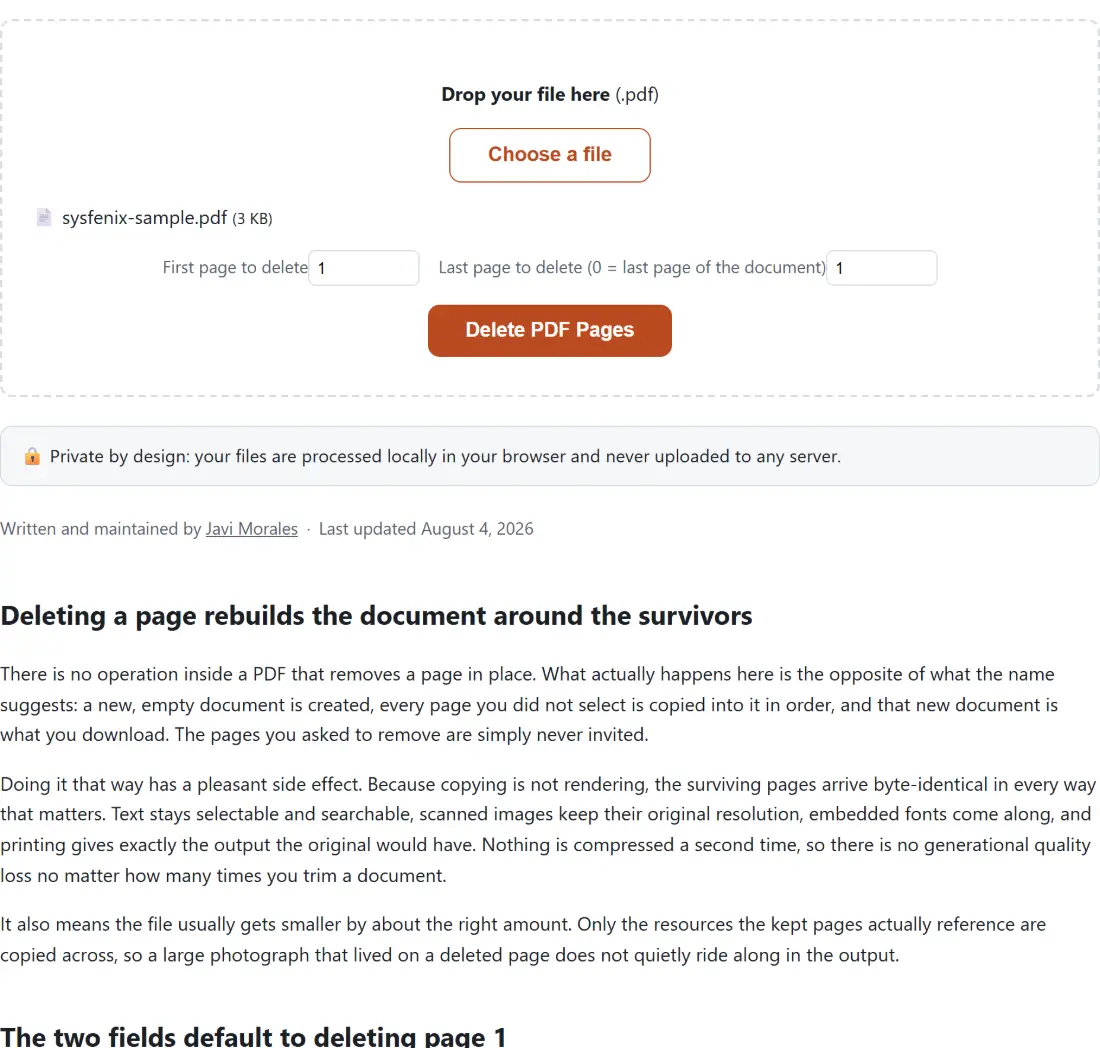
Both First page to delete and Last page to delete (0 = last page of the document) ship set to 1, so a run where you change nothing removes the first page and keeps everything else. That is deliberate, because the scanner cover sheet is the single most common thing people come here to get rid of, but it does mean the defaults are not a no-op.
Pages count from 1 and both ends are included, so 4 to 6 removes three pages. A last page of 0 means “through to the end of the document”, which is the quick way to lop off a trailing appendix without counting how long it is. Type that 0 rather than clearing the field: an emptied box counts as no value given and falls back to the 1 the page starts with. A last page beyond the real page count is clamped down rather than rejected.
Three situations stop the run. A first page past the end of the document, a last page that comes before the first, and a range that would take out every page, since a PDF has to keep at least one. All three are genuine mistakes rather than something to guess at. The range is resolved by the same shared code Split PDF and Rotate PDF use, so a range means the same thing across all three.
Bookmarks, links and form fields after a deletion
The honest limitation lives at the document level rather than the page level.
A bookmark outline is a tree that belongs to the document as a whole, not to any individual page, and it is not reconstructed in the new file. Neither are the interactive form definitions that make fields fillable, nor document metadata such as title and author, nor file attachments. Annotations attached to a page do travel with that page, but a link whose destination was one of the deleted pages now points at nothing.
For the ordinary jobs (dropping a blank sheet, cutting an internal notes page before forwarding a report, removing a duplicate scan) none of that is noticeable. On a long, heavily bookmarked manual it is, and the pragmatic move there is to keep the full document as your master and produce trimmed copies only for the people who need them.
Removing the pages
- Drop your PDF into the box above, or click Choose a file.
- Set First page to delete to the first unwanted page.
- Set Last page to delete (0 = last page of the document). Use the same number as the first field to remove a single page, or 0 to delete everything from the first page onward.
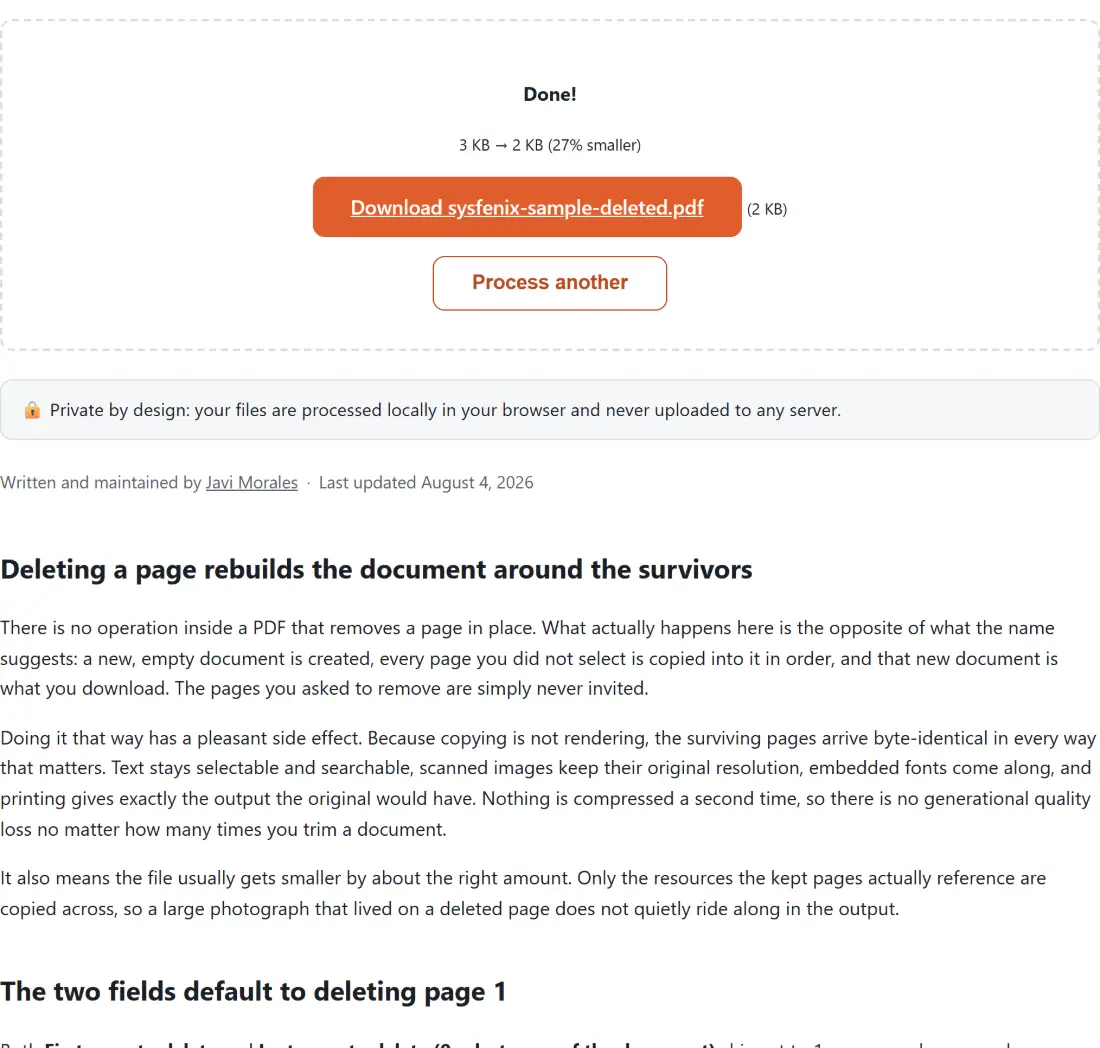
- Click Delete PDF Pages. The bar advances as the kept pages are copied, then finishes as the new document is written.
- Save the result, which comes back with
-deletedadded to the original name.
One continuous range, and the all-pages guard
Each run handles exactly one uninterrupted stretch of pages, which is a real constraint worth planning around. Getting rid of pages 2 and 9 means two runs, and the second one has to account for the shift: once page 2 is gone, everything after it moves up by one. Deleting from the back of the document forwards sidesteps that, because removing a later page never renumbers an earlier one.
A range that would leave nothing behind is refused outright, since a document with zero pages is not a valid PDF. The interface reports it with the same generic error it shows for everything else, so the specific reason ends up in the browser console.
Nothing here involves a server. The document is read from your device’s memory, taken apart and rebuilt by pdf-lib inside the tab, and handed to your downloads folder. Trimming is very often an act of sharing less than you were sent (the confidential page, the internal appendix, the wrong client’s cover letter), and it would be strange to achieve that by transmitting the complete original somewhere first. Afterwards, Reorder PDF Pages rearranges what is left and Merge PDF joins it to something else. Further reading: the best PDF tools, compared.