Assembling one document from several, step by step
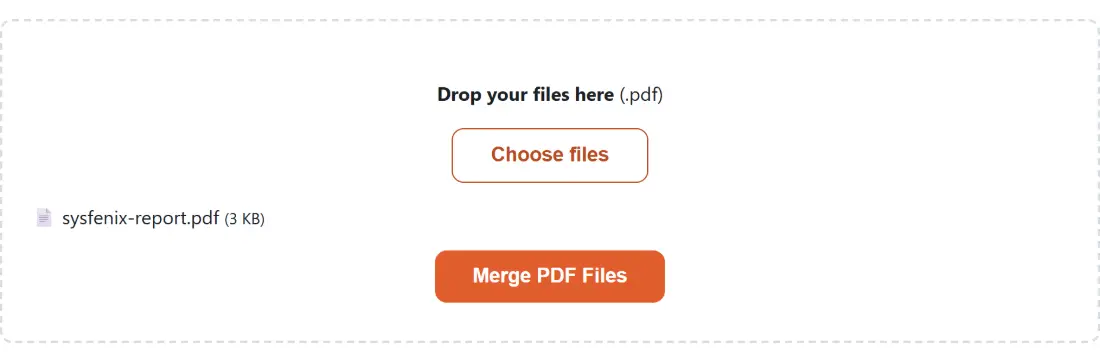
- Drop your PDFs onto the box above, or press Choose files. You can add them in several goes, and a file with the same name and size as one already queued is skipped as a duplicate.
- Check the list. Files are combined top to bottom in exactly the order shown, and there is no way to reorder or drop one afterwards, so if the sequence is wrong reload the page and add them again.
- Press Merge PDF Files. The button repeats the page title word for word, because the shared file shell uses the title as its action label.
- Download the result. It is always called
merged.pdf.
There are no options on this page at all, so the options panel other tools show simply does not appear. The progress bar advances one step per source file as each document’s pages are copied in.
What the copy actually does to your pages
The mechanics are simpler than most people assume. A brand new, empty PDF is created, then each source file is parsed in turn and every one of its pages is copied into that new document in order. Page content, text, vector drawings and embedded images are carried across as objects rather than being redrawn, so nothing is rasterized, re-rendered or recompressed on the way through. A merged page is the same page it was.
That also means the combined file is not a photocopy of your originals stitched together. It is a new document that happens to contain their pages, which explains most of the behavior further down this page: anything stored at the document level rather than the page level has no route into the new file unless something rebuilds it, and nothing here does.
Mixed page sizes survive intact
A frequent worry is what happens when the files disagree about paper. It costs nothing here. I built one A4 document and one US Letter document, merged them, and read the page dimensions straight back out of the result: the A4 pages measured 595 by 842 points and the Letter pages measured 612 by 792, side by side in the same file. Each page keeps its own media box.
So a five page A4 report followed by a scanned Letter-size contract merges without either being stretched, padded or cropped to match the other. If you actually want a uniform sheet size, that is a layout job rather than a merge job, and N-up PDF or Print PDF as Booklet impose pages onto a chosen paper size for you.
Bookmarks, links and form fields do not all make it
This is the part worth reading before you merge something important, and I verified each of these by merging real documents and inspecting the output rather than trusting the library’s documentation.
Document metadata is dropped. Titles, authors, subjects and keywords set on the source files do not appear on the merged one, and the producer and creator fields are rewritten to name the library that assembled it. If you were merging specifically to scrub identifying fields, Remove PDF Metadata is the tool that does that deliberately and predictably.
Bookmarks are gone, because the new document is created without an outline tree and nothing rebuilds one from the sources. Link annotations are copied along with the page they sit on, and an external web link keeps working, but an internal link that jumped to another page in the same source document ends up referencing a detached copy of that page rather than the page now in the merged file, so the jump has no valid target. Form fields are the subtlest case: the widget stays on the page, but the merged document is built with no form catalog, so the field is no longer registered as a field. Check any interactive form after merging, and if the form is the point of the document, keep it separate and use Fill PDF Form before you combine anything.
Encrypted files and broken files stop the run
Parsing an encrypted PDF fails immediately, so a document that asks for a password on open cannot be merged as it stands. Remove the protection first with Unlock a PDF, which takes the locked file together with a small .txt file containing the password you already know, then merge the unlocked copy. If the finished document needs protecting again, Password Protect a PDF is the last step rather than the first.
A truncated download or a file that is not really a PDF fails at the header check just as hard. Neither case is handled per file, so one bad document ends the whole run with nothing to download, and the shell reports a single generic message rather than naming the culprit. With a large batch that fails, bisect it: merge the first half, then the second, until the offending file is obvious.
Choosing between merging and the page-level tools
Merging only ever controls the order of whole files. Everything that happens inside one document belongs to a different tool, and mixing them up is the most common reason people end up doing this twice.
- To break one document into pieces or extract a page range, use Split PDF.
- To drop a run of pages from a single document, use Delete PDF Pages.
- To move a page to a different position inside one document, use Reorder PDF Pages, because this tool cannot shuffle pages within a file.
- To start from images or plain text, convert first with JPG to PDF, PNG to PDF or Text to PDF, then merge the results.
A common real workflow chains several of those: scan or photograph the pages, convert them, merge them, then sign the finished file. The wider PDF tools hub lists the rest, and the best PDF tools guide walks through which one to reach for when.