One clip path draws both shapes
Circle and rounded square look like two separate features. In the code they are one: a rounded rectangle path built from four arcTo calls, clipped, with the photo drawn inside it. The only difference between the shapes is the radius handed to that path.
For the circle style the radius is always exactly half the square’s side. A rounded rectangle whose corners have a radius of half its width has no straight edge left anywhere, so it is a circle, which means the tool needs no separate circle branch and no second drawing routine that could drift out of step with the first. For the rounded-square style the radius is your percentage of the side, capped at that same halfway point.
The clip happens on the canvas, using the drawing API every browser already ships. Nothing is loaded to do it, and the whole operation for one photo is decode, clip, draw, encode.
Corner roundness in practice
The Corner roundness % field only matters when you pick Rounded square; the circle style ignores it entirely. It is a percentage of the square’s own size rather than a pixel count, so the same setting produces a visually identical shape whether the source is a 600 pixel thumbnail or a 4000 pixel photo.
Zero gives a hard-edged square, which is to say a plain centred square crop with no rounding at all. Around 15 to 25 percent is the range that reads as a modern app icon or a chat-app avatar, and 20 is the default for that reason. Push past 35 and the shape starts to read as “circle with flat sides” rather than “square with soft corners”. At 50 you have a circle, identical to what the circle option produces.
Out-of-range or nonsensical values fall back to 20 rather than failing, and fractional entries are rounded, so typing 12.6 gives you 13 percent.
The crop is always centred, and what to do about it
Before any clipping, a non-square photo has to become square. This tool takes the largest centred square available, trimming the longer edge equally from both sides. A 4000 by 3000 landscape photo loses 500 pixels from the left and 500 from the right. A 3000 by 4000 portrait loses 500 from the top and 500 from the bottom.
That logic is not reimplemented here; it is the same 1:1 crop routine that powers the square option in Crop Image, imported directly so both tools cannot disagree about where the centre is. The tests for this page assert the two produce identical rectangles.
Centring is right for the common case and wrong for a specific one: a group photo, or a portrait where the subject stands off to one side. There is no draggable circle overlay here to fix that. The reliable workaround is two passes. Crop the photo roughly around your subject first with that tool, then bring the output back here for the circular cutout. Photos where the head sits near the top of the frame are the usual offender, since a centred square tends to slice off the forehead.
Why the file comes back as PNG
Cutting a circle out of a rectangle leaves four corners that must contain nothing at all. “Nothing” requires an alpha channel, and JPEG has none: the closest a JPEG could manage is filling those corners with white, which defeats the entire purpose because the white would then show as a box the moment you place the avatar on a coloured header or a dark interface.
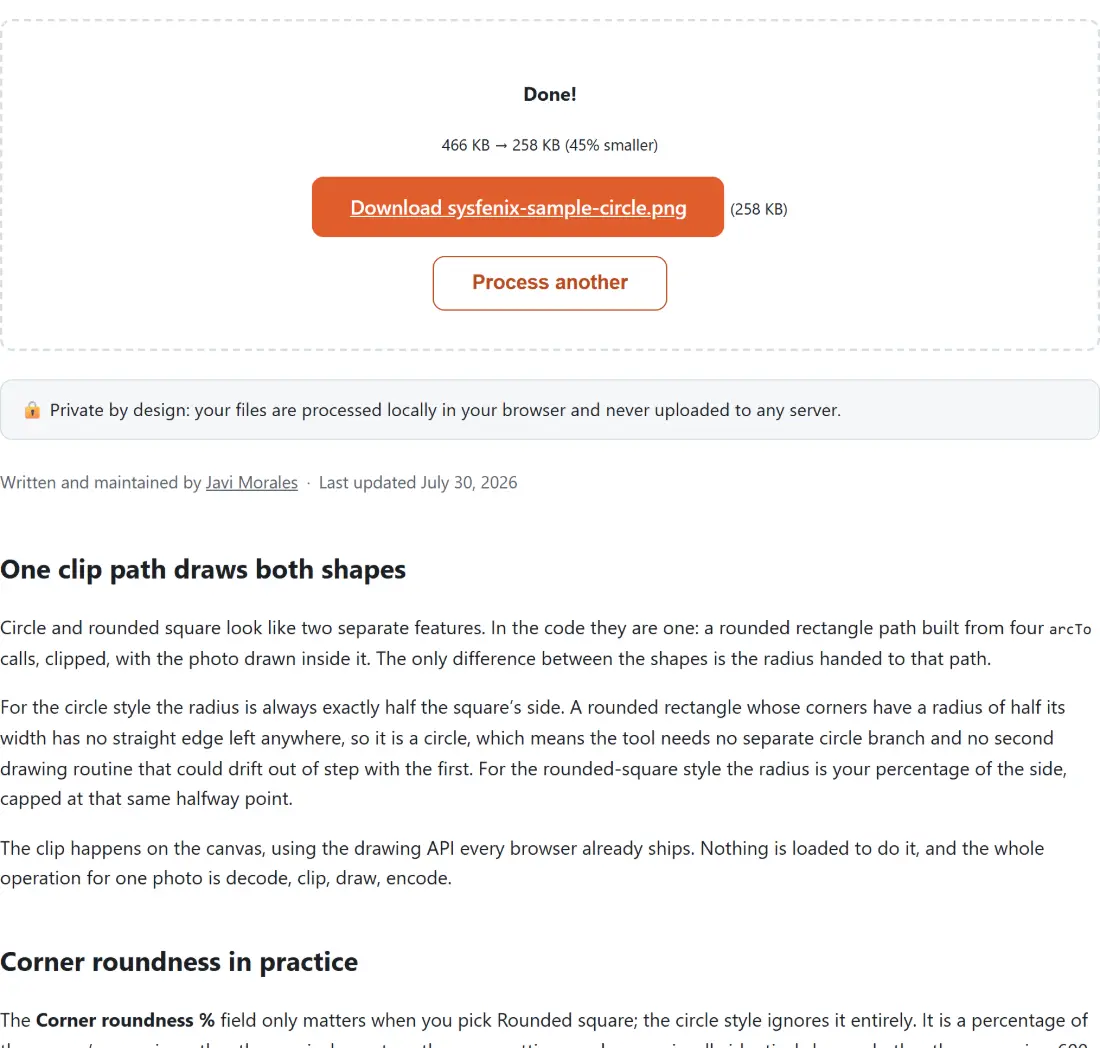
So every output is PNG, whatever you put in. The same reasoning drives the always-PNG output of the Background Remover. Files are named after the original with a suffix, photo-circle.png or photo-rounded.png, so a cropped version never overwrites or gets confused with the picture it came from.
Be aware of the size trade. PNG is lossless, photographs do not compress well losslessly, and the square you get back is as large as the shorter edge of your original. A phone photo can easily produce a multi-megabyte PNG for something that will be displayed at 128 pixels. Send it through Resize Image afterwards if the file is going anywhere with an upload limit.
Turning a folder of headshots into matching avatars
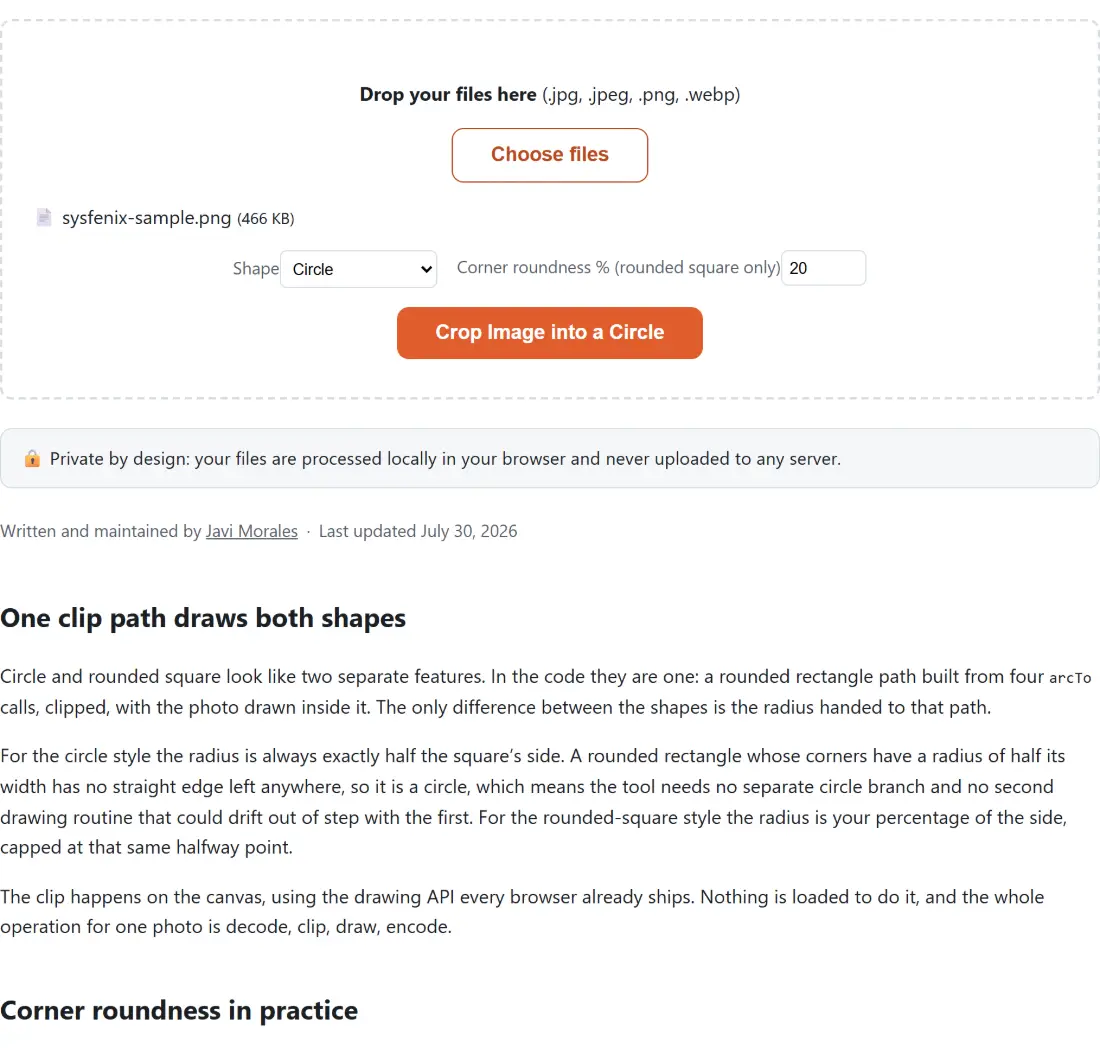
- Drop every photo in at once; the tool accepts JPG, PNG and WebP together in one batch.
- Choose Circle, or Rounded square with a roundness value if you want app-icon corners.
- Click the button and watch the progress bar, which advances one step per finished photo. Cancel during a run clears the whole batch and empties the box, so let it run to the end before you start saving.
- Download the PNGs and, if they are destined for a website, resize them all to one consistent pixel size.
The result is a set of avatars that share a shape and a framing rule, which is what makes a team page look deliberate instead of assembled from whatever each person sent in.
A headshot is a face, and faces need not be uploaded
The pictures people feed a circle cropper are passport photos, ID scans, children, a not-yet-announced product, a screenshot of something internal. Typical upload-based croppers copy that file to a server, render a preview there, and hand back a download link, which means at minimum a temporary copy on someone else’s disk and an entry in their access logs.
Here the file object never leaves the tab. Your browser decodes it, computes the square, clips the path, encodes a PNG, and hands you a local download. There is no request to cancel, no queue, and no retention policy to read, because there is nothing on the other end. Closing the tab is the entire cleanup.