From upload to a byte you can point at
- Click Upload a file to inspect and choose any file. There is no type restriction, and no processing is done to it beyond reading the bytes.
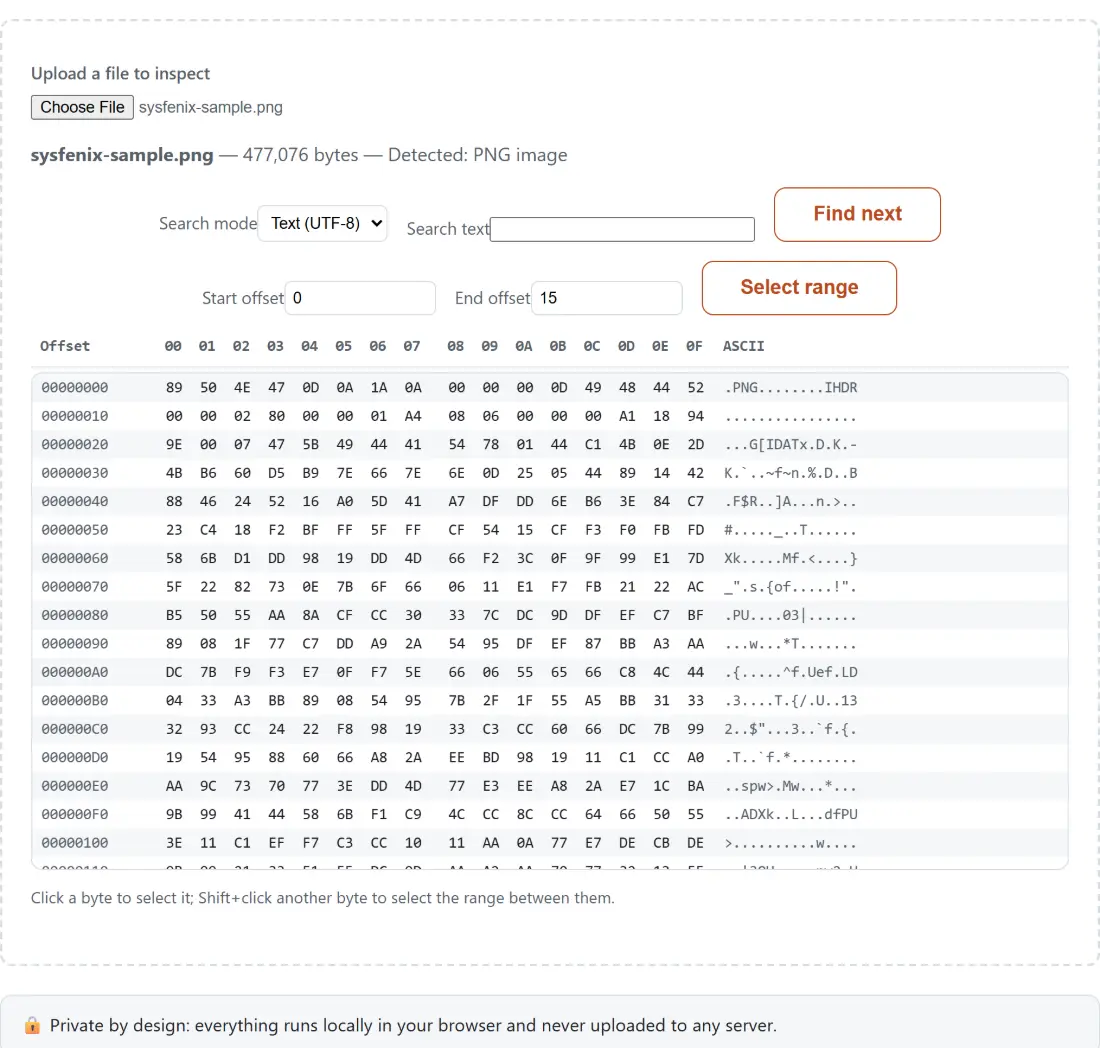
- Scroll the grid. The Offset column, the sixteen hex columns numbered
00to0Fand the ASCII pane stay locked together on every line. - To hunt for something, set Search mode to Text (UTF-8) or Hex bytes, fill in Search text or Hex pattern (e.g. 4A 50), and press Find next. Each press jumps to the following occurrence and scrolls it into view.
- Click a byte to select it, hold Shift and click a second one to take everything between them, or type numbers into Start offset and End offset and press Select range.
- Glance at the line carrying the file name for the byte count and any file signature that matched.
Sixteen bytes a row, and the dots in the right column
The layout is the one every hex dump has used since the 1970s, for the good reason that sixteen bytes per line makes offsets land on round numbers. Every line shows where it starts, then its bytes as two-digit uppercase hex, then the same bytes rendered as characters.
The character pane only renders bytes from 0x20, the space, through 0x7E, the tilde. Everything else becomes a full stop. That covers control characters like a newline or a tab, and it covers every byte from 0x7F upward, which in a UTF-8 file means every accented letter and every emoji turns into a run of dots rather than the character you would see in a text editor. This is not the viewer being lossy, it is the pane being one character wide per byte, which multi-byte encodings cannot satisfy. Read those bytes in the hex columns instead.
The practical value of the pane is pattern recognition. Text-based formats light up immediately, and a binary format’s embedded strings stand out as islands of legible characters in a sea of dots.
Two search modes over one contiguous byte array
Both modes end up at the same primitive, a byte sequence to look for. Hex mode lets you type the sequence directly, which is what you want when you are chasing a header or a known marker. Text mode encodes your typing as UTF-8 and searches for those bytes, which is what you want when you are chasing an embedded string.
Two behaviors worth knowing before you rely on the results. Find next continues from just after the previous hit, so overlapping occurrences are all reachable, and when it runs off the end it starts again from offset zero and says explicitly that it wrapped. And when nothing matches at all, it says so plainly rather than leaving the last hit highlighted, so a stale highlight never masquerades as a fresh result.
Selections, offsets and the 64-byte preview
A selection can be made by pointing or by typing, and the two stay in sync: clicking a byte fills the offset boxes with its position, and typing offsets moves the highlight and scrolls to it. Offsets typed outside the file are clamped to its last byte rather than rejected, and a reversed pair is normalized, so entering 200 and then 100 selects the same range as 100 and then 200.
The summary underneath gives you the count and the boundaries, and for a selection of 64 bytes or fewer it also prints those bytes as hex and as characters. That short-preview cutoff is deliberate. Counting bytes is the answer for a big block, and reading them is the answer for a small one, such as the eight-byte signature at the head of a PNG or the four-byte length prefix in front of a chunk.
The signature verdict beside the file name
As soon as a file loads, its opening bytes are compared against a table of well-known magic numbers, and the same line that carries the file name either names what matched or states that nothing on the list did, pointing you at the FAQ below, where the full list of checked signatures is written out. It is a curated set of the formats people most often need to recognize on sight, not a database of every format in existence.
That same table backs the File Type Identifier, which imports it from here and adds the MIME type, the canonical extension and a verdict on whether a file’s name matches its bytes. If the question you are actually asking is “what is this file”, start there; if the question is “what is inside it”, stay here. When you need an offset in a different base, the Number Base Converter reads 0x2A as 42 in decimal and 101010 in binary with its source base left on auto-detect, which picks the base up from the 0x prefix.
A viewer, not an editor, and a 100 MB ceiling
Two limits are worth stating plainly. The first is that nothing here writes: no byte editing, no patching, no saving a modified copy. The second is the 100 MB cap, which is checked once the browser has finished handing over the file and before the view is built.
Row rendering is not what that cap protects. The grid is 420 pixels tall with 24-pixel rows, so roughly seventeen lines are visible, and the component mounts at most 35 of them at a time, recomputing the window on every scroll. A file with hundreds of thousands of lines scrolls exactly like a tiny one. What the cap protects is the single flat array the whole file is held in, which is a real allocation regardless of how few lines are drawn.
For work that starts before the byte level, two neighbors help. The File Checksum Verifier answers whether a file is bit-for-bit what it should be, which is a better first question than “where does it differ” when you have a published hash to compare against. And if the bytes you are chasing arrived over the network, the HAR File Viewer reads a DevTools capture as a request table, which is a faster way to find the response you care about than reading a saved body by hand.