Two converters sharing one paste box
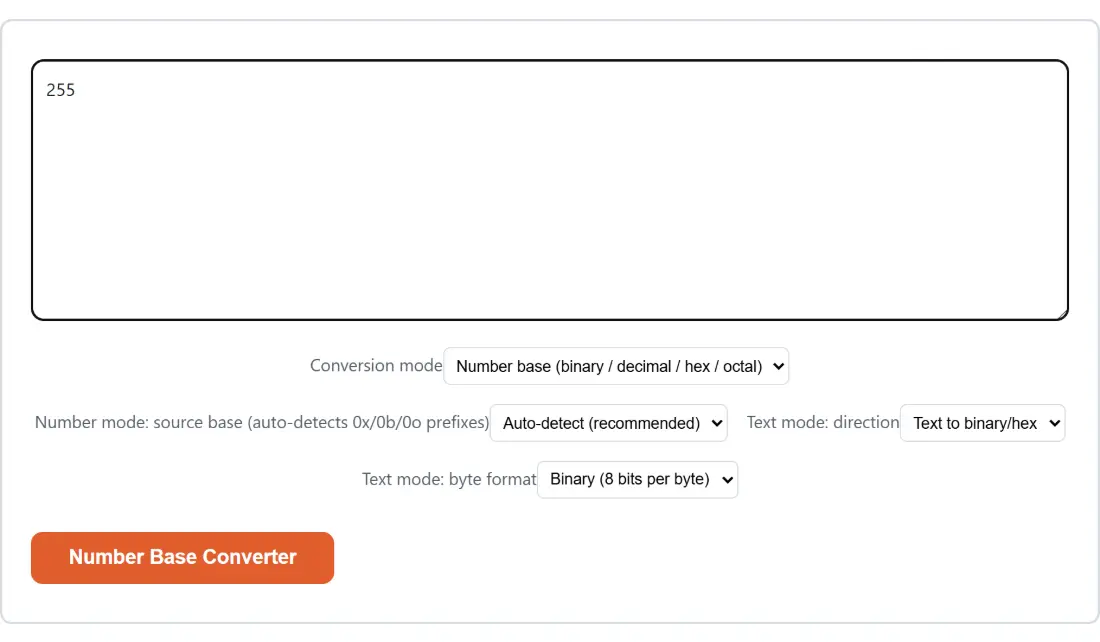
The Conversion mode dropdown switches this page between two jobs that happen to want the same interface. Leave it on number base and you are converting an integer between binary, octal, decimal and hexadecimal. Switch it to text and you are converting between readable characters and the UTF-8 bytes that represent them, written out in binary or hex.
All four dropdowns appear at once, whichever mode is selected. Two are labelled for number mode and two for text mode, and the pair belonging to the mode you are not in has no effect on the result.
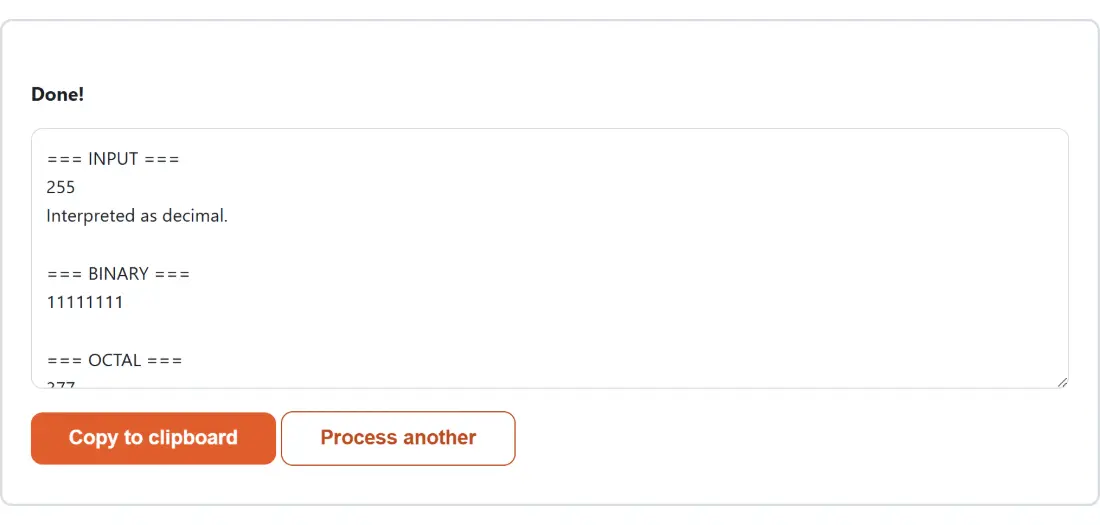
Both jobs produce a labelled report rather than one lonely number. In number mode it opens with what you typed and how it was interpreted, then gives the value in all four bases, so the usual follow-up (“and what is that in octal?”) is already answered.
Prefix detection, and what picking a base explicitly does to it
With the source base left on Auto-detect (recommended), the leading characters decide: 0x means hexadecimal, 0b means binary, 0o means octal, in either case, and anything with no prefix is read as decimal. That covers how numbers are actually written in source code, so pasting 0xFF straight out of a stylesheet or a struct definition works without touching a dropdown.
Choosing a base explicitly changes the rules in a way that is easy to trip over. The chosen base wins, and only its own prefix is stripped. Pick Hexadecimal and 0xFF loses its prefix and converts; pick Binary and 0x1F keeps every character it has, including the x, which then fails validation because x is not a binary digit. That is the intended behaviour rather than a bug: guessing that you meant hex after you explicitly said binary would be worse than refusing.
Refusals in general are strict here. Every digit is checked against the resolved base before any conversion runs, so 9 in an octal number, 2 in a binary one and g in a hex one are all rejected instead of being skipped or truncated. The page shows one generic failure message when that happens, with the specific reason written to the browser console, so the console is where to look when the cause is not obvious.
Running a number or a byte string through it
- Set Conversion mode first, since it decides which of the remaining dropdowns matter.
- For a number, leave the source base on Auto-detect unless the value has no prefix and is not decimal.
- For text, set the direction and choose whether bytes are written as binary or as hex.
- Paste the value into the box and click Number Base Converter. The button is disabled until the box has content.
- Read the labelled report and click Copy to clipboard, or Process another to start again with an empty box.
BigInt all the way down
Ordinary JavaScript numbers are floating point and stop being exact above 2^53-1, a little over nine quadrillion. A converter that parses input with parseInt hands back a wrong answer past that point, and it looks entirely plausible.
This one never touches that type. Digits are folded into an arbitrary-precision integer one at a time, multiplying the running total by the base and adding the next digit, so a value with dozens of digits converts exactly. That is not academic: 64-bit identifiers and large hex hashes both exceed the safe range, and both are things people paste into a base converter.
If you are working with hex digests rather than hex numbers, the SHA-256 Hash Generator produces them from text, and this page turns one into its decimal or binary form afterwards once you paste it with a 0x prefix or pick Hexadecimal as the source base.
A minus sign, not a two’s complement
Negative input is supported in the simplest possible way. A leading - is recorded and re-attached to every output, so -255 comes back as -11111111 in binary and -FF in hex. A leading + is accepted and discarded. Zero never grows a sign, so a negative zero is printed as plain 0.
This is not two’s complement, and the distinction matters if you came here from low-level work. Two’s complement represents a negative value as a specific bit pattern of a fixed width, which is why -1 appears as a run of ones in a register dump, and the width has to be agreed in advance. This page has no fixed width, so it uses the sign-and-magnitude form a mathematician would write. If what you need is the bit pattern in a register, this is not the tool that produces it.
Hex arrives uppercase, bytes arrive space separated
Output formatting is fixed and worth knowing before you compare results against something else. Hexadecimal is uppercased, in both the number report and the text-to-hex direction. Bytes are printed one per group, separated by single spaces, with binary bytes zero-padded to a full eight digits so that a byte below 128 still occupies its whole width.
That formatting is optional on input, though. Whitespace is removed before the digits are grouped, so anything produced here pastes straight back, as does a byte string from a tool that used no separators.
The text side of this page is a good companion to a hex dump: Hex Viewer shows a real file’s bytes with offsets and an ASCII column, and when a particular byte value there needs explaining, this page converts it between hex, decimal and binary. For a different kind of number system entirely, the Roman Numeral Converter handles that notation, including numbers past 3,999. And if the goal is to make bytes travel through a text-only channel rather than to read them, that is Base64 Encode rather than this page.