Two hiding places, not one
Every PDF carries a document information dictionary: a small set of named fields holding the title, the author, the subject, the keywords, the software that created it, the software that produced it, and two timestamps. Right-click a PDF, open its properties, and that is what you are looking at.
Most metadata tools stop there. The problem is that PDFs have a second metadata store, an XML block called XMP, which modern authoring software writes in parallel with the old dictionary. It usually holds the same author name, often more, and sometimes a small history of edits. Clearing the properties panel while leaving that XML intact produces a file that looks clean and is not.
Both are removed here. The dictionary is emptied key by key and then dropped entirely, and the XMP stream is unlinked from the document catalog and its underlying object deleted, so the bytes are actually gone from the output rather than orphaned inside it.
Cleaning a batch of documents
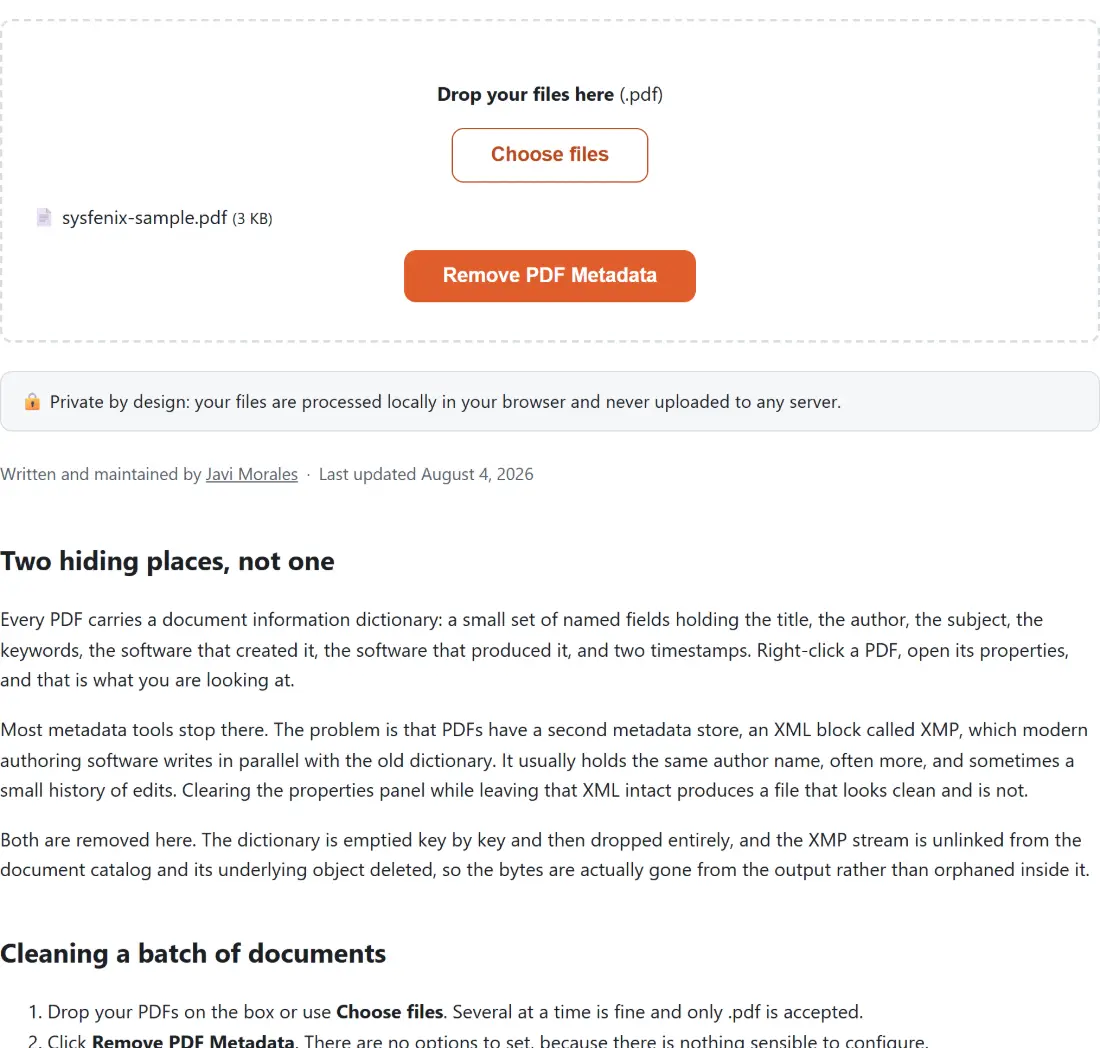
- Drop your PDFs on the box or use Choose files. Several at a time is fine and only .pdf is accepted.
- Click Remove PDF Metadata. There are no options to set, because there is nothing sensible to configure.
- The progress bar advances once per file.
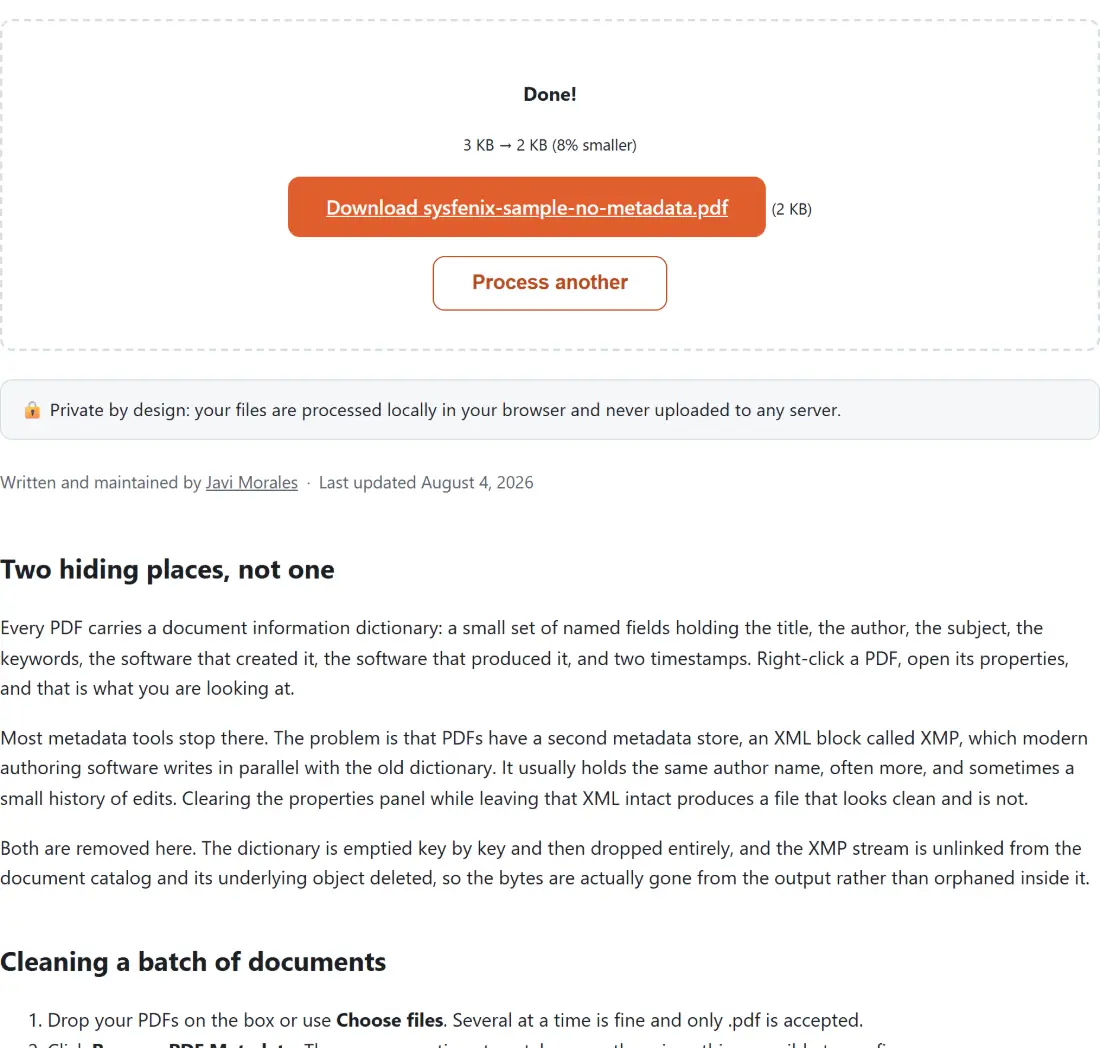
- Download each result, named after its source with a no-metadata suffix.
- Check one by opening its document properties. Every field should be blank, including producer and the two dates.
- Process another clears the queue.
Opening the properties panel afterwards is worth the ten seconds. It is the only direct confirmation that both stores were emptied rather than one.
The re-stamp problem
There is a specific way this operation goes wrong that is worth naming, because it is easy to get wrong and hard to notice.
The document library used here rewrites two fields the moment a file is opened: it sets the producer to its own name and URL, and it sets the modification date to now. That happens at load time, before any of your code runs. A tool that simply loads a document, blanks the fields it knows about, and saves will therefore hand you a file whose producer says which library cleaned it and whose modification date says exactly when.
That is worse than useless, because it swaps one identifying fingerprint for another and adds a timestamp you did not have before. Here the re-stamping is disabled explicitly at load, and the fields are then deleted directly, so the saved file genuinely carries neither.
Metadata is not the same as anonymity
Clearing metadata removes one class of identifying information. It does not make a document anonymous, and treating it as though it does has caused real leaks.
Things that survive untouched include any name printed on the page itself, filled-in form field values, digital signatures and their certificates, the author attached to each annotation or comment, embedded file attachments, and thumbnails generated from the pages. None of those live in the metadata stores, so none of them are affected.
If your goal is to remove information rather than authorship markers, Redact PDF is the tool for content on the page, and it is worth reading its own honest note about what redaction can and cannot guarantee. For a document assembled from photographs, the images inside carry their own separate metadata that a PDF-level clean does not reach.
Related cleaning
Photographs are the other big carrier of hidden data. Remove EXIF Data strips camera, timestamp and GPS information from images, and EXIF Viewer shows you what is in there first so you know whether it matters. Edit EXIF Data is for changing rather than deleting.
When a cleaned document is going out for distribution, Compress PDF reduces its size for email, and Merge PDF combines several cleaned files into one. Do the merge after cleaning, not before, since a merged document inherits metadata of its own. The rest is on the PDF tools hub.