Gain is a multiplication, and the ceiling does not move
Everything on this page comes down to one operation: every audio sample in the file is multiplied by the same number. Pick +50% and each sample is scaled by 1.5. Pick +100% and it is scaled by 2. Pick -50% and it is halved. The custom field does the same thing expressed in decibels instead of a percentage, which is just a logarithmic way of writing the same multiplier.
Digital audio has a hard maximum, and multiplication does not respect it. If a sample was already sitting near full scale, doubling it produces a value that cannot be represented, and the encoder writes the loudest value it has instead. That flattening is clipping, it sounds like crackle or grit on transients, and it is permanent in the output file because the peak information is gone rather than merely reduced.
There is no limiter on this page and no peak detection. That is a deliberate limitation rather than an oversight: the tool does precisely and only what you ask, which makes it predictable, and it puts the responsibility for listening back on you. A whisper-quiet phone memo will usually survive +100% untouched. A track mastered anywhere near modern levels will distort at the same setting.
Reading the presets as numbers
The decibel scale trips people up because two different rules of thumb float around. A doubling of amplitude, which is what the +100% preset does, is about +6 dB, since 20 times the base-10 logarithm of 2 is 6.02. Perceived loudness is a different question and roughly needs closer to +10 dB before most listeners call something twice as loud. So +100% is a large change on the meter and a solid but not dramatic change to the ear, and the two facts are not in conflict.
That is why the custom field exists and why its range stops at 20 dB in each direction. A repeatable +3 dB across a set of interview files is a normal, sane request that no percentage preset expresses well. The presets cover the common cases; the decibel field covers the specific ones.
Lifting a quiet voice memo
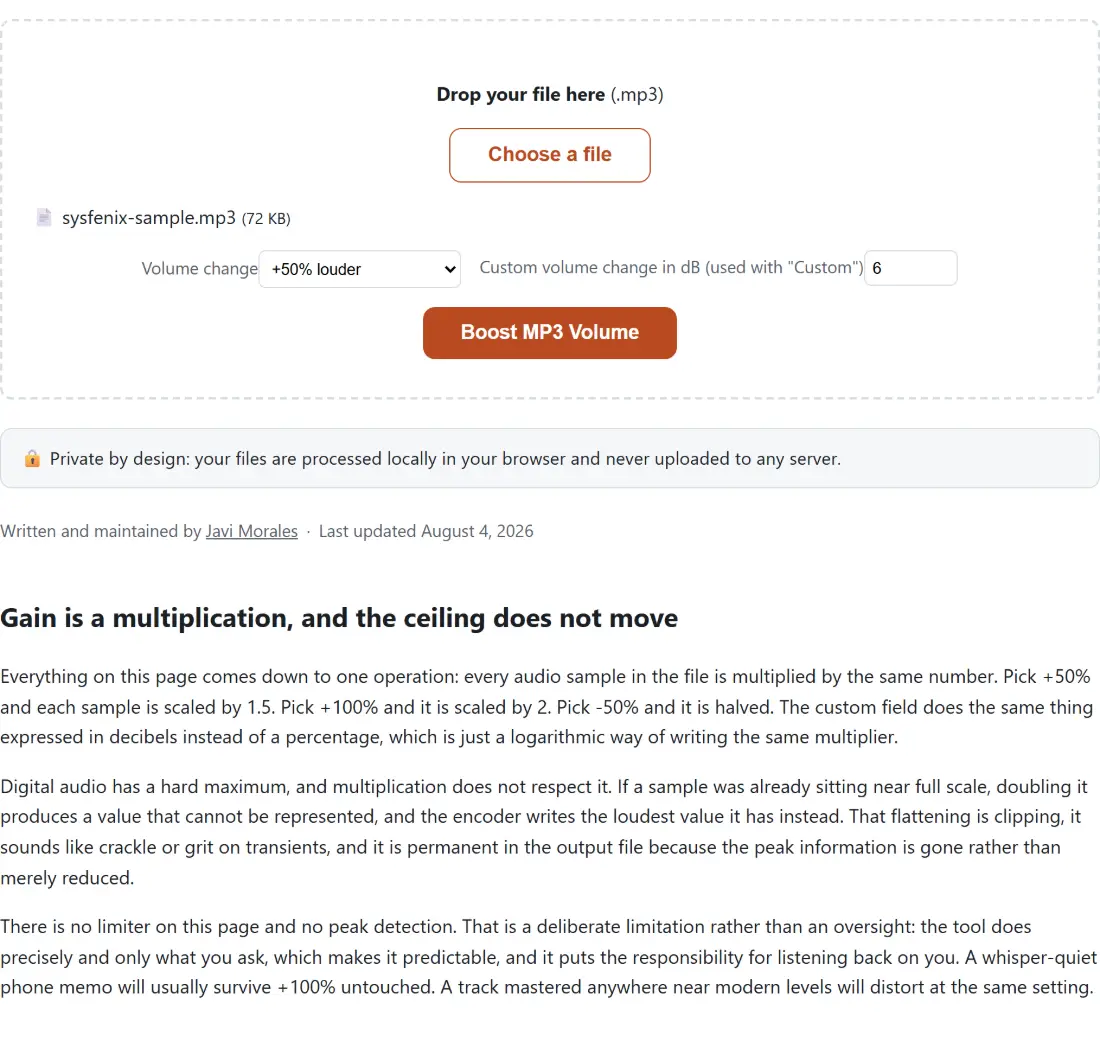
- Drop your MP3 onto the box above, or use Choose a file. Only
.mp3is accepted here. - Pick from Volume change: +50% louder for a moderate lift, +100% louder (double) when the recording is really buried, -50% quieter to bring something down, or Custom (set dB below) for an exact figure.
- If you chose Custom, put a value between -20 and 20 into the decibel field. Positive is louder, negative is quieter.
- Click Boost MP3 Volume and wait for the progress bar.
- Download the result and, before you rely on it, actually listen to the loudest section. If you hear grit, run the original again at a smaller setting.
That last step is the whole quality-control process. Converting the same file twice at two settings and comparing them takes less time than a single upload to a server-based tool would, so there is no reason to guess.
Every run is a fresh 192 kbps encode
Changing volume is not a metadata edit. Every sample has to be decoded, multiplied and written back out, so the result is always re-encoded with the MP3 encoder at a constant 192 kbps. That has three consequences worth knowing. The output is a lossy re-encode of an already lossy file, so a chain of repeated boosts is not free. The bitrate is fixed rather than matched to your source, so the file size can move in either direction. And the whole file is processed rather than a region, so length and structure are untouched.
If size is the concern after boosting, Compress MP3 re-encodes to lower targets and keeps the original bytes whenever the compressed version would not actually be smaller, which is a guarantee this page does not make.
Louder is a different request from level
If what you want is consistent loudness across several recordings rather than a fixed multiplier on one, this is the wrong tool and Normalize Audio is the right one. It measures the file’s actual loudness first and then applies the correction that recording needs to reach a target, with a true-peak ceiling below full scale, which is exactly the clipping protection missing here. It also accepts MP3, WAV, M4A, OGG and FLAC.
Two neighbours cover the requests that sound similar but are not. If the file is a video rather than an audio track, the Video Volume Booster offers the same presets and custom decibel field, adds an opt-in clipping-safe limiter, and copies the video stream through untouched so the picture is not re-encoded. And if the complaint is that a track sounds thin rather than quiet, that is an equaliser job: the Bass Booster lifts a chosen low-frequency band and keeps its limiter switched on by default, because a bass boost on real music clips almost by construction.
The MP3 never leaves your device for any of this. FFmpeg is compiled to WebAssembly and runs inside the tab, so a private voice memo, an unreleased demo or a family recording stays exactly as private as it was before the page loaded.