Setting the two timestamps
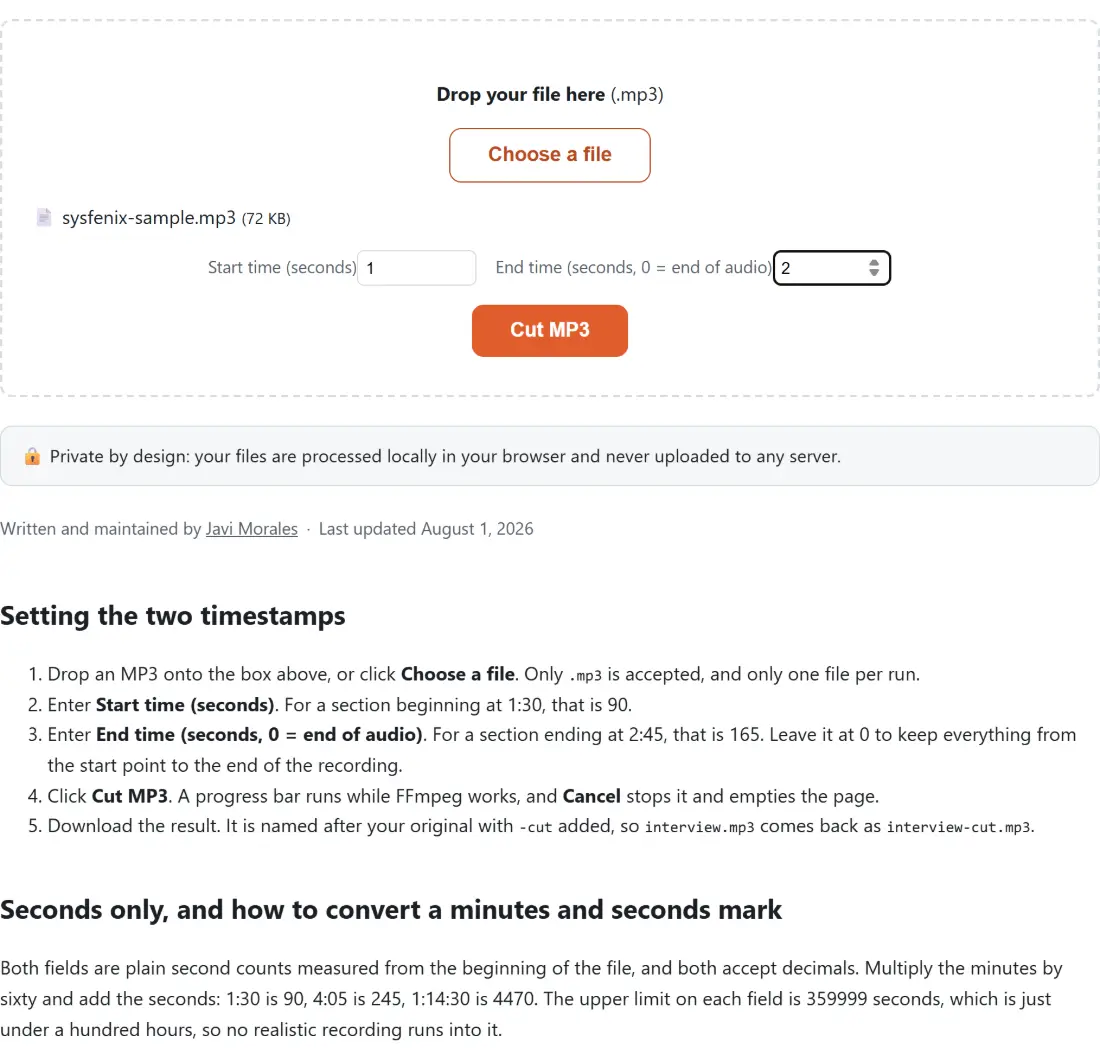
- Drop an MP3 onto the box above, or click Choose a file. Only
.mp3is accepted, and only one file per run. - Enter Start time (seconds). For a section beginning at 1:30, that is 90.
- Enter End time (seconds, 0 = end of audio). For a section ending at 2:45, that is 165. Leave it at 0 to keep everything from the start point to the end of the recording.
- Click Cut MP3. A progress bar runs while FFmpeg works, and Cancel stops it and empties the page.
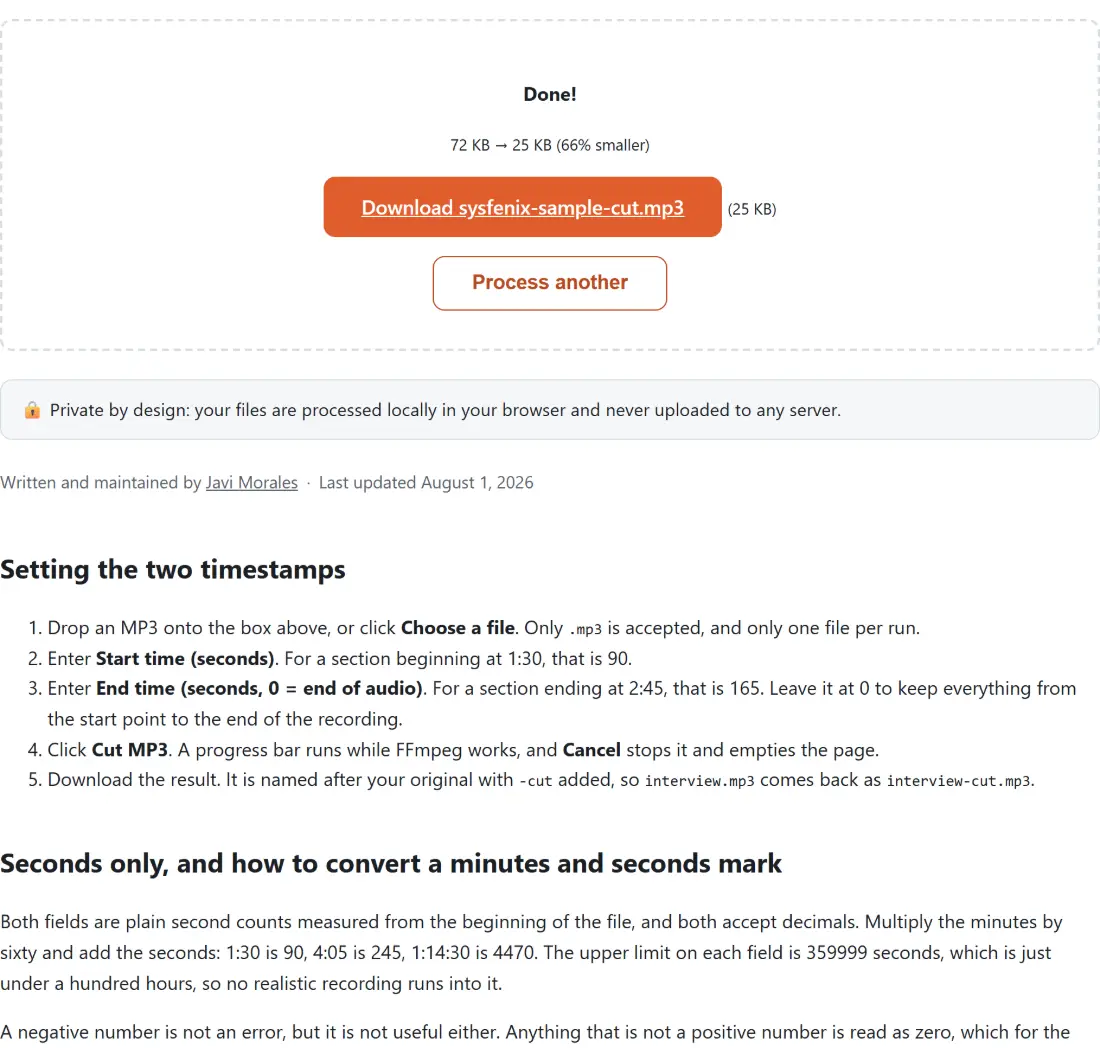
- Download the result. It is named after your original with
-cutadded, sointerview.mp3comes back asinterview-cut.mp3.
Seconds only, and how to convert a minutes and seconds mark
Both fields are plain second counts measured from the beginning of the file, and both accept decimals. Multiply the minutes by sixty and add the seconds: 1:30 is 90, 4:05 is 245, 1:14:30 is 4470. The upper limit on each field is 359999 seconds, which is just under a hundred hours, so no realistic recording runs into it.
A negative number is not an error, but it is not useful either. Anything that is not a positive number is read as zero, which for the start means the beginning of the file and for the end means no limit at all. The same is true of a stray blank field.
Stream copy, and the one artifact it can leave behind
The cut runs FFmpeg with -c copy, which means the compressed audio is never decoded. The frames inside your range are lifted out and written into a new file untouched, so there is no second generation of lossy compression stacked on the first. This is the difference between trimming and re-encoding, and it is why the cut is so much cheaper than a conversion: nothing has to be analysed or rebuilt, only copied across.
Honesty about the one caveat. MP3 frames are not perfectly self-contained. The format has a bit reservoir, a mechanism that lets a demanding frame borrow spare space from frames just before it. Cut in the middle of that borrowing and the first frame of your clip may be missing a few bits it expected to find, which can produce a very short blemish right at the start. It is usually inaudible, and it only ever affects the opening moment, but it is a real property of frame-accurate MP3 cutting rather than something a better tool would avoid.
If you need the clip re-encoded anyway, for example to shrink it further, Compress MP3 is the page for that. It runs the audio through the LAME encoder at a fixed lower bitrate, which does cost quality, and it hands your original bytes back untouched when the re-encode would not have been smaller. For the opposite problem, a clip that is too quiet once trimmed, Boost MP3 Volume handles the gain.
Frame boundaries beat keyframes
Video trimming is haunted by keyframes. A stream-copied video cut can only begin on a keyframe, and those can be several seconds apart, which is why Trim Video sometimes starts earlier than the moment you asked for.
Audio has no such problem. An MPEG Layer III frame carries 1152 samples, which at the usual 44.1 kHz sampling rate works out at roughly 26 milliseconds. The seek is placed before the input so FFmpeg jumps at the demuxer, and on a constant-bitrate file it lands on the nearest frame boundary, which is at most that fraction of a second away from the number you typed. For a ringtone, a shared quote or a sample, that is closer than anyone can hear. A variable-bitrate file without a reliable seek table in its header can land further out, because the demuxer is estimating the byte offset rather than reading it.
Ringtones, and the iPhone detour
Cutting a chorus out of a song is the classic reason people arrive here, and on Android the resulting MP3 can be set as a ringtone directly. iOS will not take an MP3. It wants an M4R, and it refuses anything longer than thirty seconds. Convert MP3 to M4R covers both requirements at once: it takes a start time of its own and always caps the output at thirty seconds. Note that it re-encodes to AAC to do so, so send it your original file rather than a clip you already cut here, and let it do the trimming.
Podcast clipping is the other big use, and there the usual sequence is to cut the quote, then check the level. Uneven loudness across a compilation is what Normalize Audio Loudness is for. If the recording is your own and starts with a minute of shuffling, Remove Silence from Audio can strip the dead air without you finding the timestamps by hand. The rest of the set lives on the audio tools hub, and the audio tools guide walks through which one to reach for.
When the cut fails or comes out longer than expected
Three things account for nearly every surprise. A clip that runs to the end of the file usually means the end time was left at zero or was set below the start time. A clip that begins in the wrong place usually means minutes were typed where seconds were expected, so a mark of 1:30 was entered as 1.30 rather than 90.
The third is a file that is not really an MP3, or one whose extension was renamed from another format. FFmpeg will refuse it, and the page shows one general failure message rather than the underlying reason, so try opening the file in a player first to confirm it plays. If you need to cut audio out of a video instead, Convert MP4 to MP3 extracts the soundtrack first and you can trim the result here afterwards.