Where 96, 64 and 40 kbps actually sit
Most bitrate advice you find online is written for people ripping CDs in 2004. The useful question today is not “what sounds transparent” but “what is small enough to send, and what am I sending”.
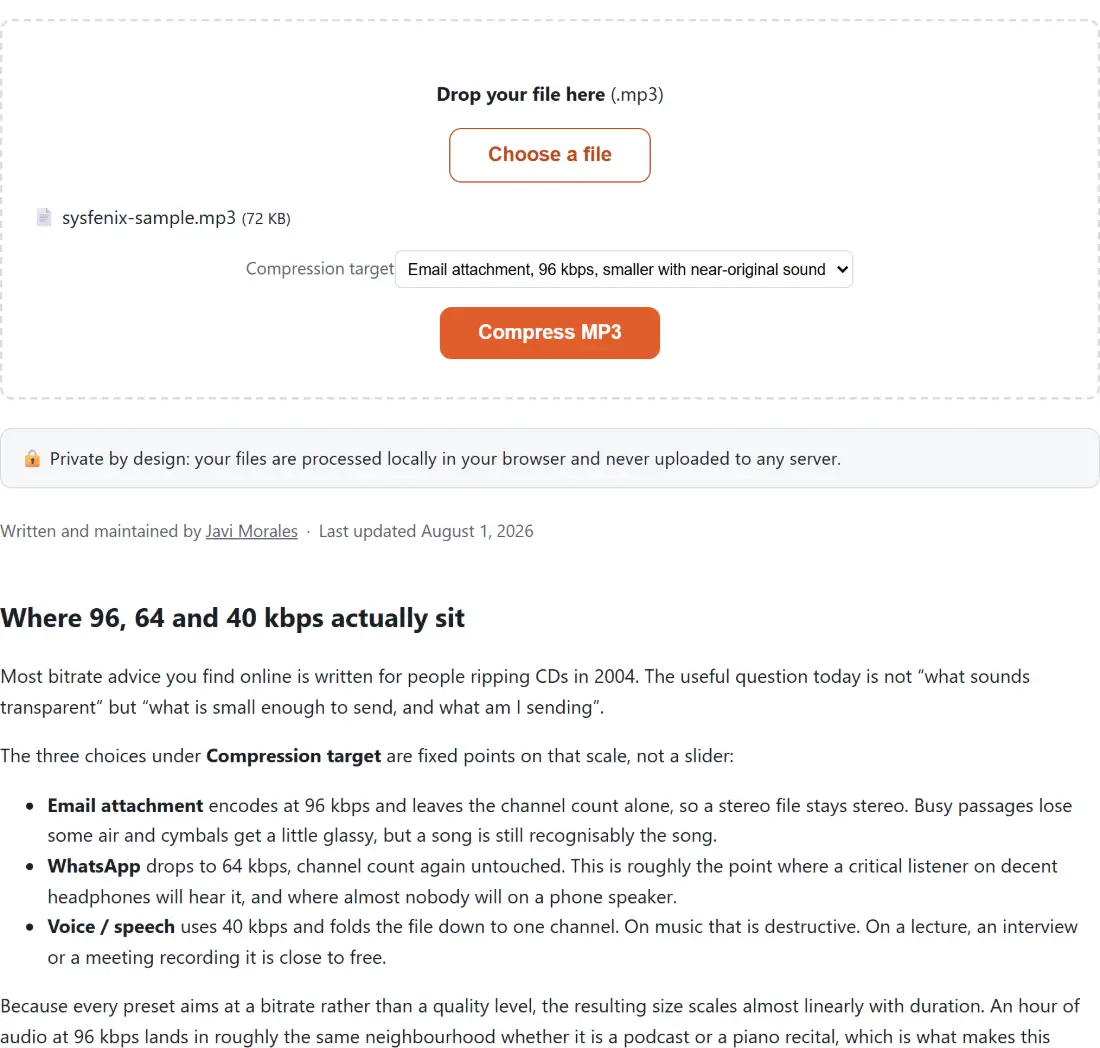
The three choices under Compression target are fixed points on that scale, not a slider:
- Email attachment encodes at 96 kbps and leaves the channel count alone, so a stereo file stays stereo. Busy passages lose some air and cymbals get a little glassy, but a song is still recognisably the song.
- WhatsApp drops to 64 kbps, channel count again untouched. This is roughly the point where a critical listener on decent headphones will hear it, and where almost nobody will on a phone speaker.
- Voice / speech uses 40 kbps and folds the file down to one channel. On music that is destructive. On a lecture, an interview or a meeting recording it is close to free.
Because every preset aims at a bitrate rather than a quality level, the resulting size scales almost linearly with duration. An hour of audio at 96 kbps lands in roughly the same neighbourhood whether it is a podcast or a piano recital, which is what makes this useful for clearing a size limit.
The flag that drops your album art
The full argument list the module builds is short enough to read whole: -vn -c:a libmp3lame -b:a 96k on the default preset, with 96k replaced by 64k or 40k on the other two, and -ac 1 appended when you pick the speech preset.
That leading -vn is worth knowing about. It tells FFmpeg not to write any video stream into the output, and inside an MP3 the embedded cover image is stored as precisely that kind of stream. So the compressed file comes out without artwork. For a file you are about to email or attach to a message that is usually irrelevant, but it does mean the compressed copy is not a drop-in replacement for the one sitting in your music library.
Mono is a second lever, not just a lower number
People tend to read the three presets as one dial turned further each time. They are not. The speech preset changes two independent things, and the channel count is doing at least as much work as the bitrate.
A stereo MP3 has to describe two signals. Collapsing them to one, on material where both channels carry essentially the same voice, does not halve the perceived quality because there was nothing in the difference between them to lose. That is why 40 kbps mono can be more intelligible on a voice memo than 64 kbps stereo would be, despite the smaller number. If you want to make that trade without also re-encoding at a lower bitrate, the stereo to mono converter does the downmix on its own, and it accepts WAV, M4A, OGG and FLAC as well as MP3.
Running a file through the encoder
- Drop your
.mp3on the box above, or use Choose a file. Other audio extensions are turned away before anything runs. - Pick a Compression target. Email attachment is the default and the sensible starting point for anything with music in it.
- Click Compress MP3. Encoding happens on your own hardware, so a long file takes a while, and Cancel stops it.
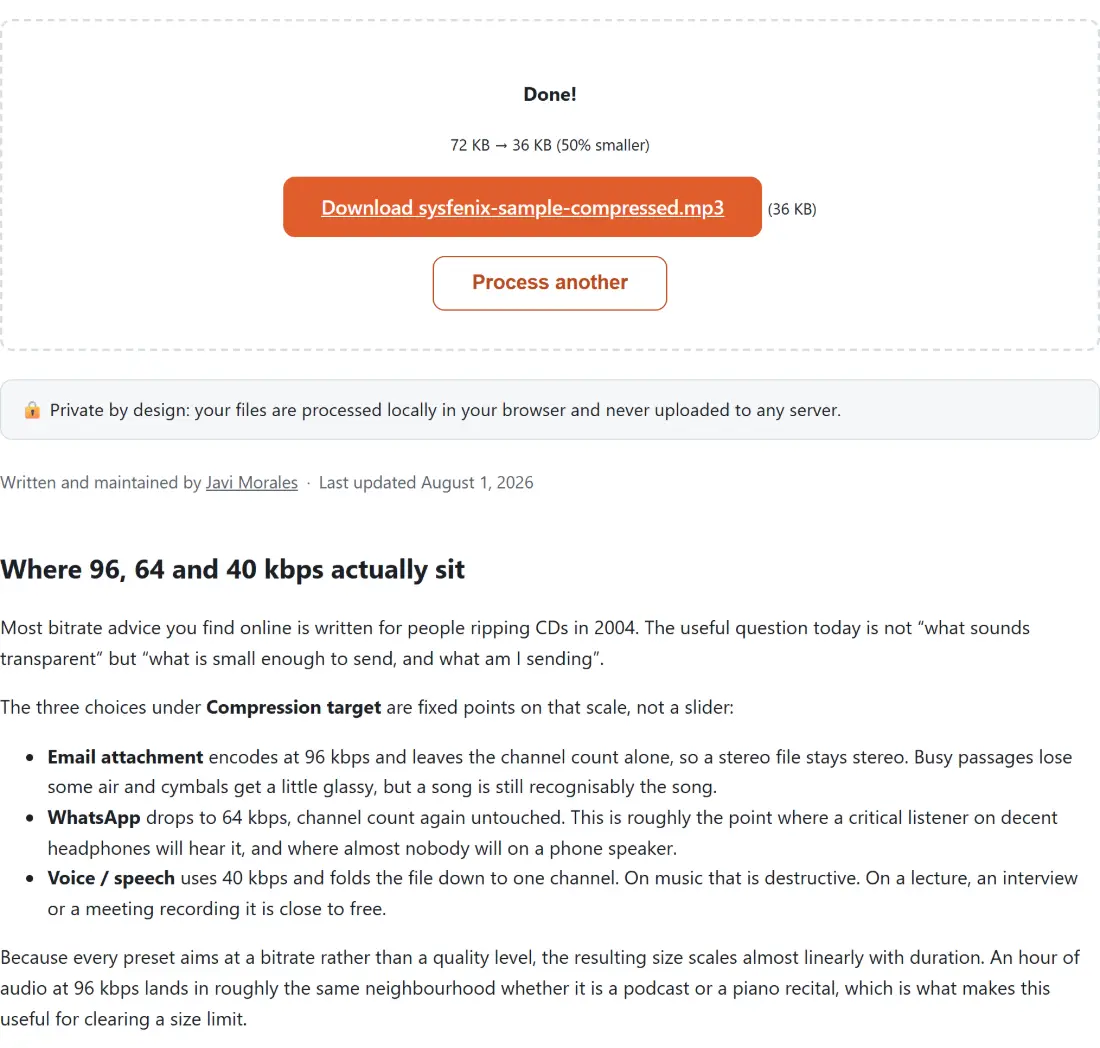
- Check the before and after sizes printed above the download button, then save the file.
Generational loss, and why the source matters more than the preset
The single biggest factor in how good the result sounds is not which preset you choose, it is what you fed in. A 320 kbps rip has a lot of headroom and takes a drop to 96 kbps gracefully. A file that was already saved at 64 kbps has very little left, and pushing it down again produces the swirly, underwater texture people associate with bad audio.
There is also an ordering question. Cutting the file down before compressing it usually beats compressing harder: trimming an MP3 uses a stream copy rather than a re-encode, so removing the dead first minute of a recording costs you no quality at all, and stripping the silent gaps out can take a surprising amount off a talk recording. If you also want consistent loudness, run the loudness normalizer first and compress afterwards, so the bitrate reduction is the last lossy step rather than one that gets re-processed. The audio section has the rest of those tools, and there is a longer write-up on the trade-off in the guide on choosing a bitrate for voice versus music.
The size check that can hand your bytes straight back
Lowering a bitrate number does not guarantee a smaller file. If your input was encoded at 48 kbps and you select the 96 kbps preset, the honest output is bigger than the input, and returning that would be an absurd result for a tool called a compressor.
So after the encode finishes, the module compares the new blob against the original file size and, when the new one is not smaller, returns your original bytes instead. The download still carries a -compressed suffix in its name, which means the filename is not evidence of anything. Trust the size line above the button.