Polling every frame, because the Gamepad API has no events
The Gamepad API is the odd one out among browser input APIs. There is no button-down event to listen for. The only two events window ever fires are gamepadconnected and gamepaddisconnected; the actual state of every button and axis has to be asked for, over and over.
So this page runs a requestAnimationFrame loop that calls navigator.getGamepads() once per frame, walks the array it gets back (which is sparse, with empty slots showing up as nulls), and rebuilds a fresh display snapshot for every pad it finds. That loop is the whole engine. The connect and disconnect handlers are registered but do nothing at all, because the running loop notices a new or vanished pad on its next frame anyway.
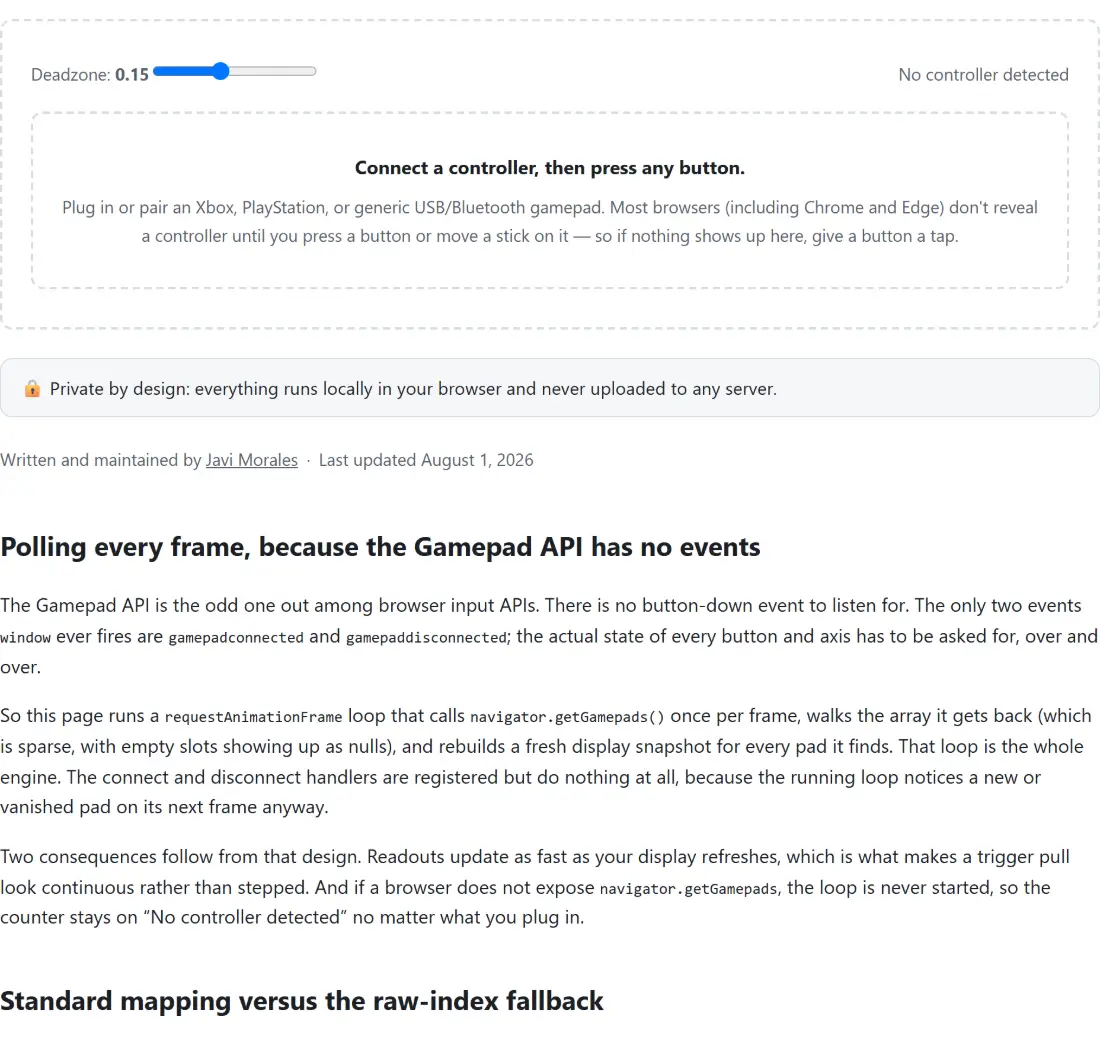
Two consequences follow from that design. Readouts update as fast as your display refreshes, which is what makes a trigger pull look continuous rather than stepped. And if a browser does not expose navigator.getGamepads, the loop is never started, so the counter stays on “No controller detected” no matter what you plug in.
Standard mapping versus the raw-index fallback
Every connected pad gets its own panel, headed by its slot number and the identification string the browser reports for it, with a badge beside it reading either “standard mapping” or “non-standard mapping”. That badge decides everything underneath.
Standard mapping is the W3C layout: seventeen buttons at fixed indices and four axes at fixed indices. When the browser promises it, the tiles carry real names, and the face buttons carry two of them at once (A / Cross, B / Circle, X / Square, Y / Triangle) because index 0 genuinely is both the Xbox A button and the PlayStation Cross button. Anything a pad reports past index 16 falls back to a plain numbered label instead of inventing a name for it.
When the badge says non-standard, the panel changes shape. Button names become bare indices, the two stick boxes are replaced by a “Raw axes” list printing each axis to three decimal places, and a warning paragraph spells out that the browser cannot say which physical control is which. It is deliberately less pretty. A wrong label on a diagnostic tool is worse than no label, and the raw axis numbers still answer the only question that matters, which is whether the control moves.
The deadzone slider and the three stick states
The control at the top reads “Deadzone” followed by the current value to two decimals. It slides from 0.05 to 0.30 in steps of 0.01 and starts at 0.15. Changing it takes effect on the very next frame, because the polling loop reads the live value rather than restarting.
Each stick is collapsed to a single number, its magnitude, the straight-line distance from centre. That magnitude is then classified three ways:
- At or below your deadzone, the status reads “centered” and nothing is wrong.
- Above the deadzone but no further than 0.50, the status says the stick is past the deadzone and that this is drift if you are not touching it.
- Above 0.50, the status reads “active”, which is the guard that stops a stick you are deliberately holding from ever being called faulty.
The dot in each box tracks the raw axis pair, and the vertical axis is positive downward in the Gamepad API, so pushing a stick down moves the dot down. The readout underneath prints X, Y and magnitude to three decimals, which is fine enough to watch a worn stick settle at a small non-zero resting value instead of a true zero after you let go.
Working through a controller you have just unboxed
- Connect the pad by USB cable or pair it over Bluetooth, then press any button on the controller itself so the browser reveals it.
- Confirm the counter has changed from “No controller detected” to a controllers-connected count, and check whether the badge says standard mapping before you trust any of the printed names.
- Walk the whole pad in order: both stick clicks, all four D-pad directions, both bumpers, the face buttons, and Start and Back. Each tile fills with the accent colour while its button is held, so a dead button is a tile that never changes.
- Pull the left and right triggers slowly to the stop. Only those two tiles print a number and a bar, and a healthy trigger walks smoothly from 0.00 to 1.00 rather than jumping straight to the top.
- Take both thumbs off the pad, drag “Deadzone” down toward 0.05, and read both stick status lines. A stick that will not settle to “centered” at a small deadzone is drifting.
- Press “Test vibration” last, if the button is present at all.
The 500 millisecond rumble test, and when the button is missing
The vibration button is feature-detected per pad, not per browser. It renders only when that specific controller exposes a callable vibration actuator; otherwise the panel shows a short explanatory note in its place, since rumble is mainly a Chromium plus compatible-pad combination and Firefox and Safari frequently expose nothing.
When it is there, pressing it fires one dual-rumble effect: no start delay, 500 milliseconds long, both the weak and the strong motor requested at full magnitude. There is no intensity slider and no repeat. Worth knowing before you read anything into a quiet controller: if the pad rejects the effect, that rejection is caught and ignored, so nothing appears on screen to distinguish a refused effect from a pad whose motors have failed.
Where this stops and a vendor utility starts
This is a read-only diagnostic. It will not calibrate a stick, remap a button, adjust a trigger response curve, update firmware or save a profile, and nothing it shows is written anywhere. Several genuinely useful controller features are also simply outside the standard mapping the browser hands over: motion sensors, touchpads, adaptive trigger resistance and battery level are not part of the snapshot, so their absence here says nothing about your hardware.
For the rest of an input checkup, the keyboard tester covers stuck keys and rollover, the mouse tester covers buttons, scroll direction and double-click behaviour, and the click speed test turns clicking into a score. If a game feels wrong and the pad checks out clean here, the next suspect is usually the display rather than the input, which is what the refresh rate test measures. The rest of the live hardware checks sit together under testers.