HTML Minifier & Beautifier

Shrink a page of HTML in your browser, or re-indent a minified one, with before and after byte counts plus a real gzip measurement. Nothing is uploaded.

🌐 Español

🔒 Private by design: your text is processed locally in your browser and never uploaded to any server.

Whitespace runs collapse to one space, never to none

Most of what an HTML minifier throws away is whitespace, and the only interesting question is how far it goes. Strip every gap between tags and you get the smallest possible file. You also change what some pages say, because a space between two inline elements is rendered text. <b>a</b> <b>b</b> reads “a b”. <b>a</b><b>b</b> reads “ab”. Nothing in the markup flags which of those you meant.

The rule here is narrower on purpose. Inside a text node, a run of spaces, tabs, carriage returns, newlines and form feeds becomes exactly one space. Three spaces between two bold tags come out as one. Twelve lines of indentation in front of a paragraph come out as one. No gap inside the document ever collapses to nothing. Measured against a minifier willing to gamble, that is a byte lost per gap, and it is the entire safety margin.

There is one exception, and it lives at the two edges. The finished result is trimmed, so a fragment that started or ended with a space comes back without it. That is invisible in a whole document and occasionally matters in a snippet you are about to drop back between two inline elements, where you may need to type the space in again.

Two things deliberately survive the pass. A non-breaking space is a character somebody typed on purpose, so it sits outside the collapse and comes through intact even in the middle of a run. Whitespace inside a quoted attribute value survives too, because tags are copied out verbatim instead of being re-serialised, so alt="two spaces" keeps both of them.

Comments split into two classes. An ordinary comment is dropped. A conditional comment, meaning one whose body opens with [if or contains <![endif, is kept, because old versions of Internet Explorer read those as markup and deleting one changes what they draw.
Script, style, pre and textarea come through byte for byte

Four elements hold content that is not ordinary HTML text, and the scanner treats each one as a single opaque block running from its opening tag to its matching closing tag. Whatever is inside is copied straight to the output.

That is not caution for its own sake. Collapsing whitespace inside pre destroys the formatting that is the point of the element. Inside script it can rewrite a string literal or a regular expression. Inside textarea it changes what the user sees in the box. The end-of-block search also follows the HTML tokenizer’s own rule, so a literal </scriptlet> sitting inside a JavaScript string does not end the script early.

The consequence is easy to miss when you read the output. Your stylesheet is not minified and your script is not compressed, because neither was ever examined. For the stylesheet, the CSS Minifier & Formatter does that job and reports its own before and after sizes; for the script, the JavaScript Beautifier reprints it with Prettier. Minify each part in the tool that understands it, then paste the results back into the page.

From a pasted page to a single line, step by step

  1. Paste the markup into the box above. A complete document, a template partial, a newsletter block or a single element all work.
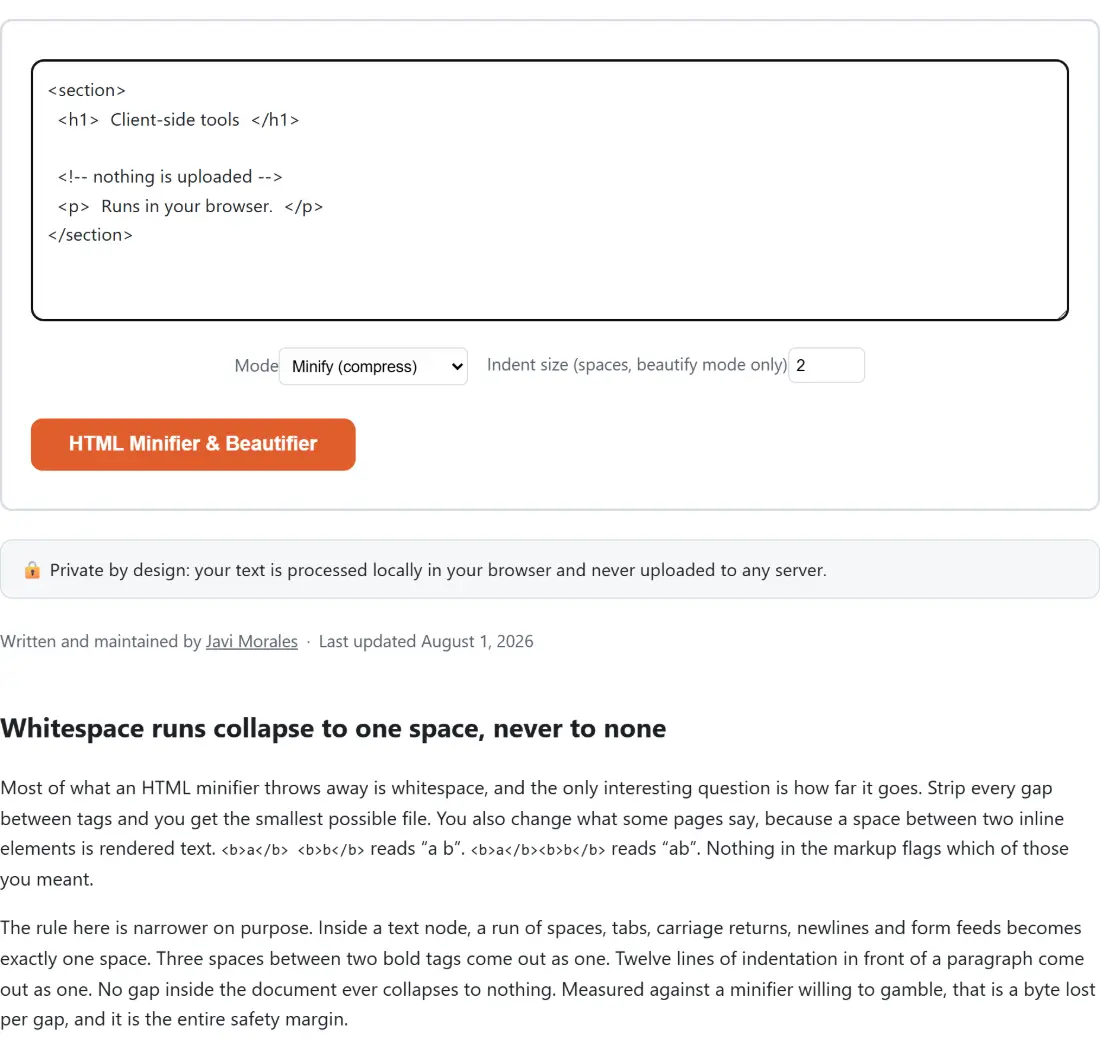
  2. Leave Mode on Minify (compress), or switch it to Beautify (pretty-print) and set Indent size (spaces, beautify mode only) to the width you like.
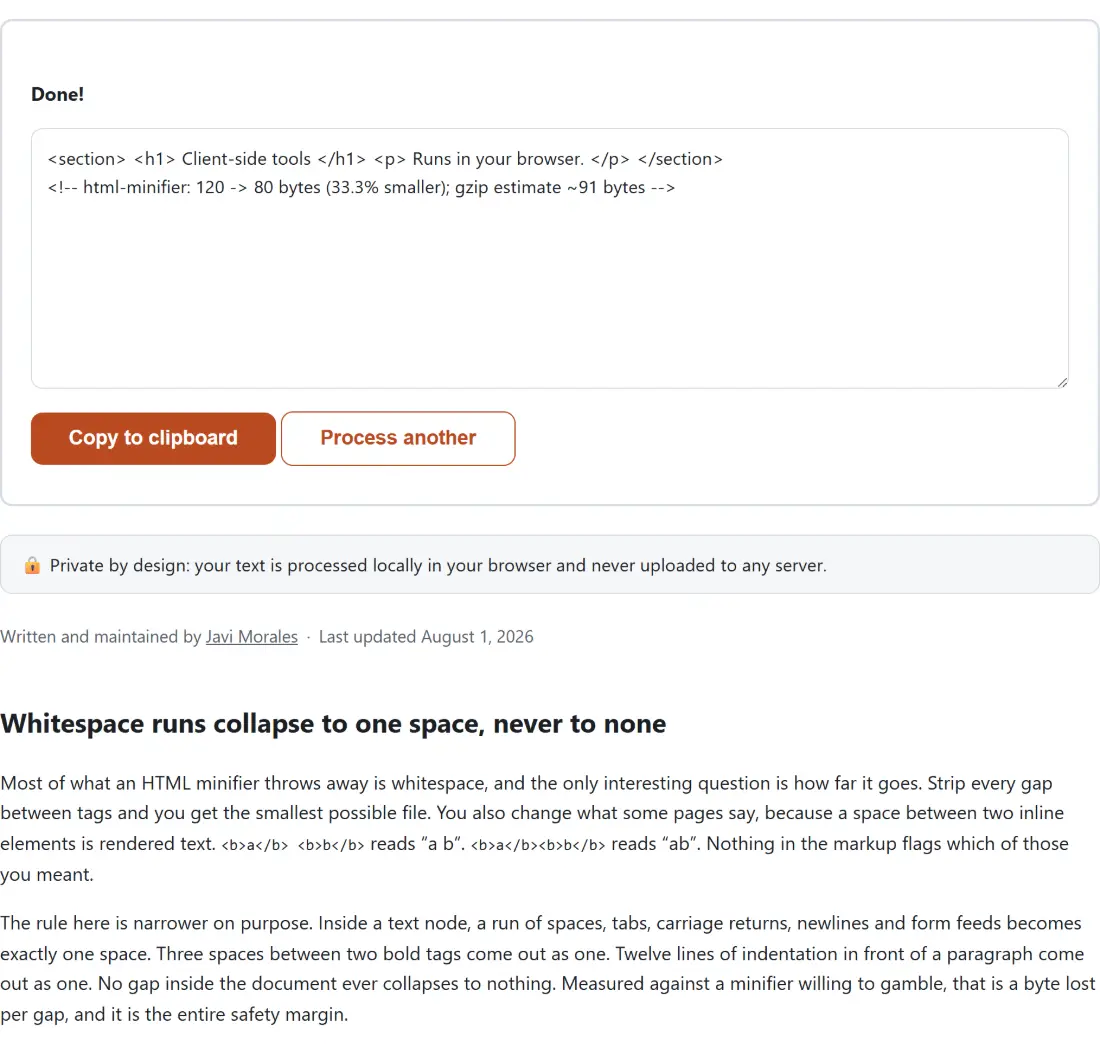
  3. Click HTML Minifier & Beautifier. The result replaces the input box, with a one-line stats comment appended underneath it.
  4. Use Copy to clipboard to take the result, or Process another to clear the box and start again.

Because the input box is replaced by the result, keep your original somewhere. There is no download step and no file involved at any point.

Reading the stats comment appended to the output

Here is a real run. A short exported page, indented throughout, carrying one build comment, a small style block and a pre block, went in at 361 bytes and came out like this:

<!-- html-minifier: 361 -> 297 bytes (17.7% smaller); gzip estimate ~217 bytes -->

Three numbers, and each answers a different question. The 361 and the 297 are UTF-8 byte counts, not character counts, so an accented letter or an emoji is weighed the way the network will weigh it. The percentage is derived from those two. The gzip figure is a genuine compression run over the minified markup rather than a rule of thumb, which matters because HTML compresses unusually well. On this sample the 297 bytes squeeze to 217.

Run the original through the same measurement and the honest picture appears. Those 361 bytes would have gzipped to 241, so minification saved 64 raw bytes but only 24 compressed ones. Repeated indentation is exactly the kind of pattern a compressor eats for free. Over the wire, minifying markup on top of gzip buys much less than the raw percentage suggests; where it still pays is parse time, and files a server happens to send uncompressed.

Beautify mode re-indents, and that can move a full stop

Beautify walks the same token stream and prints one line per tag, comment, text node or raw block, indented by nesting depth. Void elements such as br and img and any self-closed tag never open a level, so lists and forms indent the way you expect. Raw blocks are indented on their first line only, and their interior is left exactly as it was.

The limitation is real and easy to demonstrate. Given <p>Read the <a href="/latest">latest issue</a> <b>now</b>.</p>, beautify puts the anchor, the bold element and the trailing full stop on separate lines. A browser turns each of those line breaks into a space, so the rendered text becomes “now .” rather than “now.”. Beautify is a reading aid for markup you did not write, not a round trip. The stats comment is appended in this mode too, and it will usually report the file growing; beautifying the exported page from the previous section reported 23.8% larger.

Where this stops and a build pipeline starts

A bundler minifies markup as part of every deploy, with a real parser and a configuration file. This page exists for the markup that never passes through one: an email template, a CMS block, an exported static page, a snippet from a tutorial. It has no options beyond mode and indent width, it will not remove optional closing tags or collapse boolean attributes, and it does not validate anything. Nothing it does depends on a network connection once the page has loaded.

Two neighbours are worth knowing about. If you want to see exactly what a minify pass changed, run the original and the result through the Text Diff Checker and read it line by line. And if your icons live in separate .svg files rather than inline in the page, the SVG Optimizer takes those files directly and strips editor metadata that no minifier working on pasted markup would ever see.

See it in action

Screenshot of the HTML Minifier & Beautifier tool with the sample input “<section> <h1> Client-side tools </h1> <!-- noth…”, Mode set to Minify (compress), Indent size (spaces, beautify mode only) set to 2
HTML Minifier & Beautifier mid-process: the sample input “<section> <h1> Client-side tools </h1> <!-- noth…”, Mode set to Minify (compress), Indent size (spaces, beautify mode only) set to 2.
Screenshot of the HTML Minifier & Beautifier result screen showing the generated output “<section> <h1> Client-side tools </h1> <p> Runs …”
The finished result: the generated output “<section> <h1> Client-side tools </h1> <p> Runs …”. The download link is a local blob URL — the file never leaves your device.

Frequently asked questions

Will the minified markup render the same as what I pasted?

That is the constraint the whole whitespace rule is built around. Runs of whitespace inside text collapse to a single space rather than disappearing, so a gap between two inline elements survives as a gap. Ordinary comments go; conditional comments stay. Script, style, pre and textarea elements are copied out untouched. The output is larger than an aggressive minifier would produce, and that difference is the safety margin.

Why is the CSS inside my style block still indented after minifying?

Because the contents of a style element are not HTML, and this tool treats the whole element as one opaque block it copies out unchanged. Collapsing whitespace in there is not free the way it looks. Run the stylesheet through the CSS Minifier and Formatter tool instead, then paste the compressed rules back into your page and minify the markup around them.

What is the comment on the last line of the output for?

It reports the input size, the output size, the percentage change and a gzip figure for the result. It is a real HTML comment, so a browser ignores it and you can paste the whole output straight into a file. It is appended at the very end rather than prepended, which keeps it from ever landing above a doctype declaration. Deleting that one line changes nothing else.

Is the gzip number measured or estimated from a formula?

Measured. The finished markup is run through your browser's own CompressionStream API with the gzip algorithm and the compressed bytes are counted. Two caveats worth knowing. It measures the output before the stats comment is appended, so the comment's own bytes are not in the figure, and a server may use a different compression level or serve brotli instead.

Can I paste a fragment rather than a whole document?

Yes. The scanner walks the markup looking for tags, comments and raw-text elements; it never demands a doctype, a html element or a matched tree. A template partial, a table row, an email block or one div all work. An unterminated tag at the end of the input is taken as running to the end rather than raising anything, so nothing is silently dropped.

Does beautify mode give me back the file I originally wrote?

No, and it is worth being precise about why. Beautify puts every tag and every text node on its own indented line, which is excellent for reading structure and wrong for shipping. A full stop that followed an inline element ends up on a line of its own, and a browser renders that line break as a space. Treat the beautified output as something to read, then work from your real source.

Related tools