Paste a stylesheet, read the byte count, copy the result
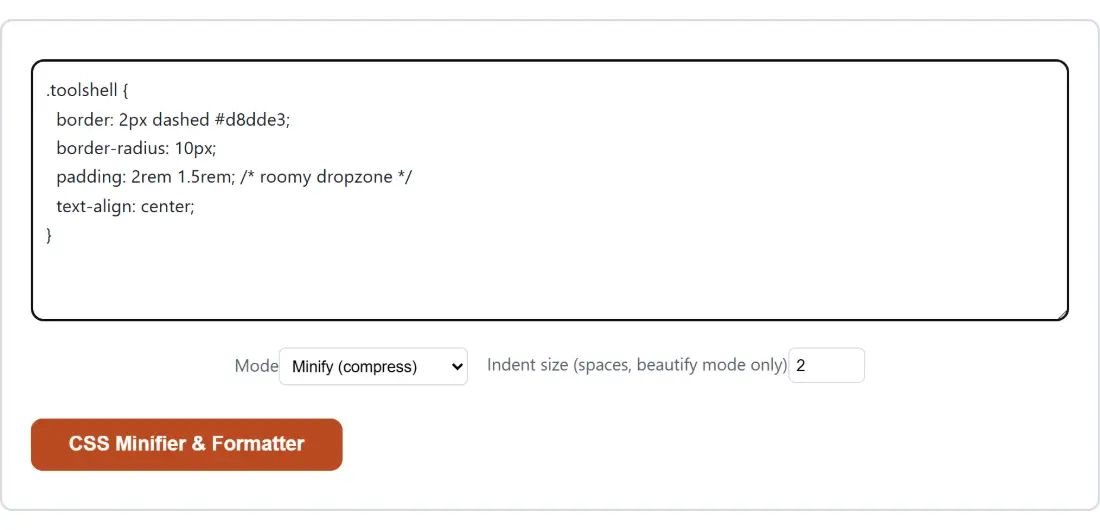
- Paste your CSS into the box at the top of the page. A whole stylesheet, the contents of a style block, or a single rule all work.
- Leave Mode on Minify (compress), which is what it opens on, or switch it to Beautify (pretty-print) to go the other way. If you are beautifying, set Indent size (spaces, beautify mode only) to the width you want.
- Click the CSS Minifier & Formatter button underneath the options. The action button on this page carries the tool’s own name rather than a generic verb.
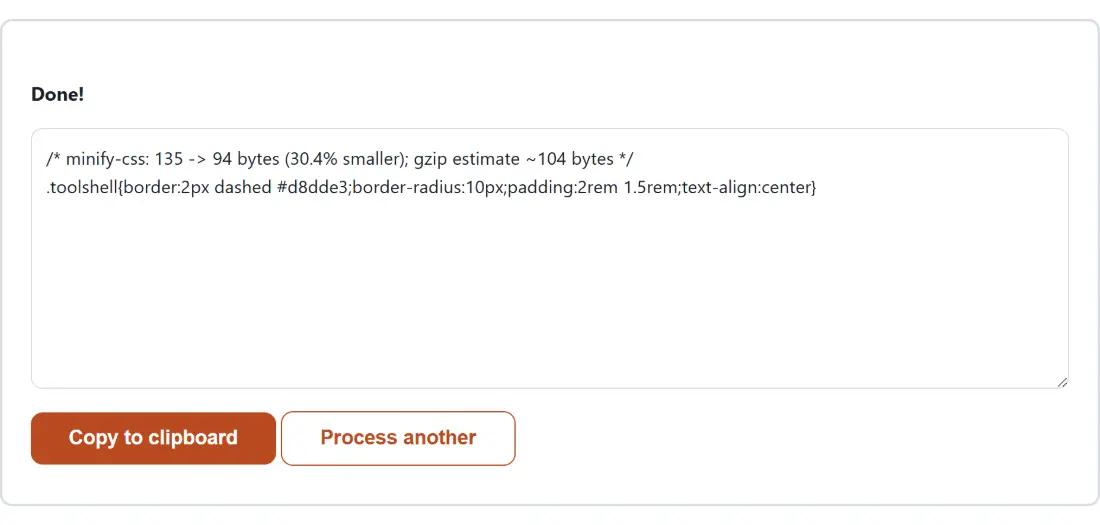
- Read the result in the output box. Its first line is a comment reporting the before and after byte counts and a gzip measurement; the CSS follows on the next line.
- Click Copy to clipboard, or click Process another to clear the page and start again with new input.
One thing to expect: the moment the result appears, the input box, the two options and the action button are replaced by the output. That is how this shell works, so if you want to try the same stylesheet at a different indent width, copy it before you run it.
csso does more than delete spaces
Whitespace stripping is the part everyone expects, and it is the smaller part of the saving. This page runs csso with rule restructuring enabled, which also merges rules that end up identical and shortens values that have a shorter spelling. Take this stylesheet:
/* Card component */
.card {
  margin: 0px 0px 0px 0px;
  padding: 16px;
  color: #ffffff;
  background-color: rgb(37, 99, 235);
}

.card--wide {
  margin: 0px 0px 0px 0px;
  padding: 16px;
  color: #ffffff;
  background-color: rgb(37, 99, 235);
}
That is 248 bytes. What comes back is 76, a 69.4 percent reduction:
/* minify-css: 248 -> 76 bytes (69.4% smaller); gzip estimate ~88 bytes */
.card,.card--wide{margin:0;padding:16px;color:#fff;background-color:#2563eb}
Four separate transformations happened there. The comment went. The two selectors collapsed into one rule because their declarations matched exactly. The four repeated zero-pixel values became a single zero. And both colour values were rewritten to their shortest equivalent form. None of that changes what a browser renders.
The stats comment at the top of the output
The header line is a real CSS comment, not a label bolted on outside the code, so you can paste the entire output into a file and it stays valid. It reports the original byte count, the new byte count, the percentage change in either direction, and the gzip figure.
Two details are worth knowing. The counts are UTF-8 byte counts taken with a text encoder rather than character counts, so a content property holding an accented word or an emoji is measured the way a server would measure it. And the comment measures the CSS before the comment itself is prepended, so its own bytes are not in the after figure. Delete the line if it bothers you.
The gzip figure is a genuine compression run using the browser’s own compression stream, not a ratio guess. That honesty cuts both ways: on the small example above, gzip reports 88 bytes for a 76-byte stylesheet, because gzip’s fixed framing costs more than it saves on input that short.
Beautify mode, and the indent box that reads empty as one
The reverse job comes up as often as the forward one. You are looking at a production stylesheet that shipped on a single line with no source map, and you need to read it before you change anything. Switch Mode to Beautify (pretty-print) and you get one declaration per line at the indent width you chose.
The indent field is clamped to one through eight and rounded to a whole number, and there is a trap in the empty state: clearing the box produces a zero, which is below the range, so it is pulled up to one space per level rather than reverting to the default of two. If you want two, type two.
Beautify mode still prints a stats comment, and it will usually report a percentage larger rather than smaller, because adding indentation and line breaks is the entire point. Do not read that as a failure.
Where this sits next to a real build pipeline
If your CSS already passes through Vite, webpack or a Sass build, that pipeline minifies for you and this page has nothing to add. It exists for the stylesheets that never reach one: a CMS theme, a snippet lifted from an answer somewhere, a hand-written style block on a landing page, a chunk of CSS an assistant produced for you.
The same shape exists for neighbouring formats. The HTML Minifier & Beautifier is the direct sibling, with the same Mode and indent options and the same default of minifying. The JSON Formatter & Validator is the mirror image, defaulting to pretty-printing instead, because that is what people usually want from JSON. For JavaScript there is only one direction: the JavaScript Beautifier formats with Prettier and offers no minify mode at all. And if the thing you want smaller is a vector graphic rather than a stylesheet, SVG Optimizer takes real .svg files as uploads instead of pasted text.
What it will not do to your CSS
It does not rename selectors, add vendor prefixes, or drop rules it thinks are unused. Dead-code elimination in particular needs to see your HTML and your JavaScript, and this page only ever sees the text you pasted, so it cannot make that judgement and does not try. The restructuring described earlier is a rewrite of how the same declarations are written, not a decision about which of them your page still needs.
Malformed input degrades rather than erupting. An unclosed rule such as a declaration with no closing brace comes back closed and minified. Something that is not CSS at all comes back as an empty result with a stats comment claiming a hundred percent reduction, which is technically true and a good hint that you pasted the wrong buffer. There is no length limit and no upload step, so a stylesheet with hundreds of rules behaves the same as a three-line snippet. The wider developer tools hub and the developer tools guide cover the rest of the set.