What a JPEG has already thrown away
JPEG is a lossy format, and by the time a file reaches this page the loss has already happened. When your camera, phone or export dialogue wrote that .jpg, it split the image into blocks, converted them into frequency information, threw away the coefficients it judged least visible, and in almost every case stored the colour information at half the resolution of the brightness information. None of that is recoverable. It is not stored anywhere in a compressed form waiting to be restored; it simply is not in the file.
Converting to PNG cannot undo any of it. What the browser hands the canvas is the decoded result of all those decisions, and PNG then records that result exactly, pixel for pixel, with nothing further discarded. The picture will look identical to the JPEG on screen, because it is the JPEG, stored differently.
That is still worth doing, but only for the right reason. PNG is not an upgrade in quality. It is a promise about the future: from this file onwards, nothing more will be lost.
The PNG usually lands bigger than the JPG it came from
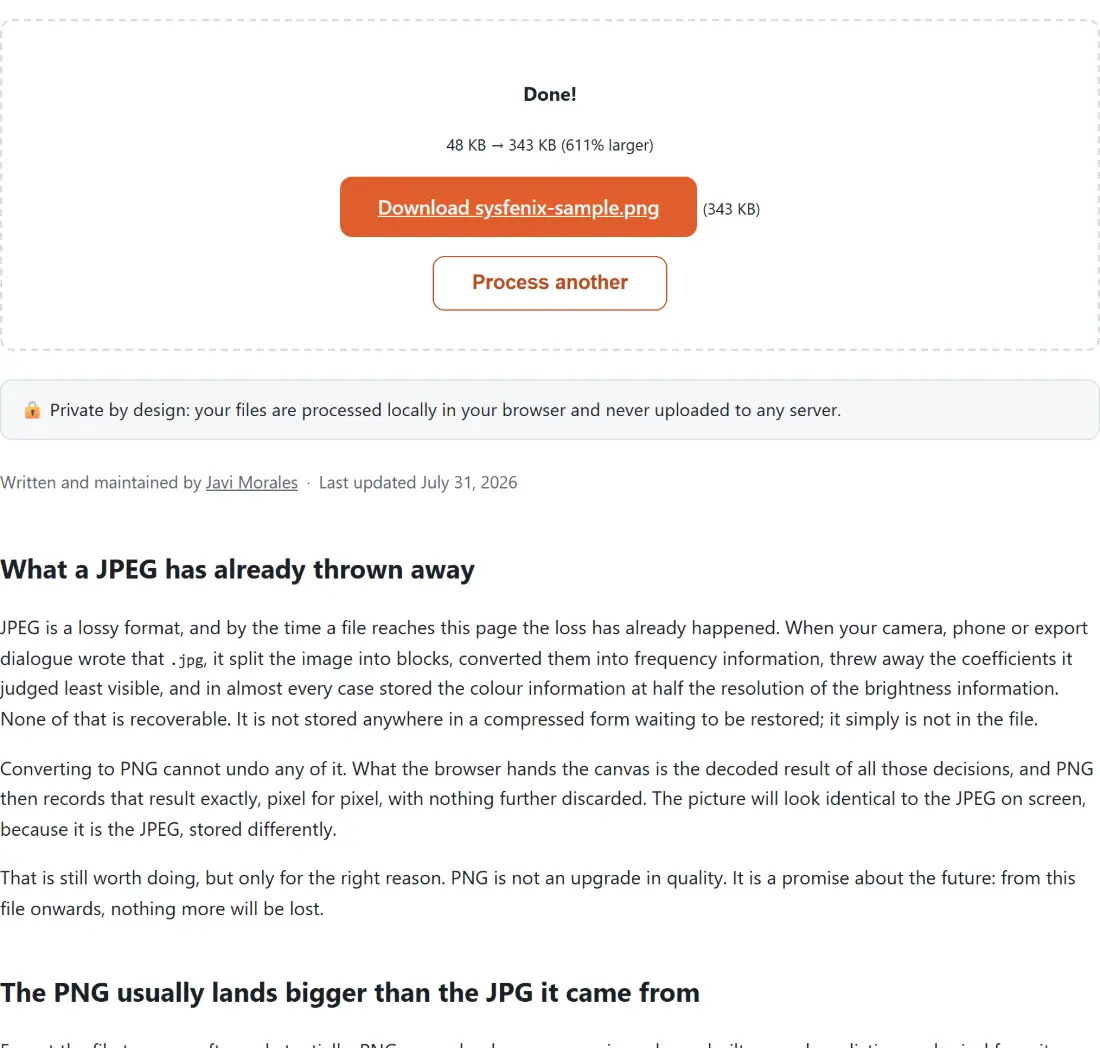
Expect the file to grow, often substantially. PNG uses a lossless compression scheme built around predicting each pixel from its neighbours and then deflating the differences. On flat colour, clean gradients, line art and screenshots that works extremely well. On photographic content, where almost every pixel differs slightly from the one beside it because of sensor noise and fine texture, it has very little to work with.
The irony is that JPEG’s artefacts make this worse rather than better. Ringing around edges and the faint blocking in smooth areas are structure the PNG encoder now has to store faithfully, because it has no way of knowing that structure was never in the original scene. If size is the priority rather than losslessness, JPG to WebP is usually a far better trade, and Compress Image re-encodes the JPEG at a quality you choose without changing its format, handing back your original bytes if that turns out not to save anything.
EXIF orientation and the metadata the canvas drops
Two details of the decode path are worth knowing. The first is rotation. Phone cameras frequently record the sensor’s raw orientation and add an EXIF tag telling viewers to turn the picture, which is why the same photo appears upright in one app and sideways in another. The decoder used here applies that tag before anything is drawn, so the PNG contains genuinely upright pixels and the ambiguity disappears.
The second is metadata. Because the output is encoded from what was drawn on the canvas rather than copied from the source file, none of the JPEG’s EXIF block survives: no camera body, no lens, no timestamp, no GPS coordinates. That is often exactly what people want, but if the goal is specifically to clean a JPEG without changing its format, Remove EXIF is the direct tool for it.
PNG as the working copy for repeated edits
The strongest argument for this conversion is generation loss. Every time a JPEG is opened, altered and saved as a JPEG again, the encoder runs over pixels that already carry the previous save’s damage, and the errors compound. Crop, save, adjust, save, annotate, save, and after a handful of rounds the edges have visibly softened even though no single step looked destructive.
PNG stops that chain. Once the image is in a lossless format, editing and re-saving is free of further degradation, so PNG is the sensible working format for anything that will be touched repeatedly: annotated screenshots, layered composites, assets heading into a design tool, images destined for print. Convert once at the start of the process, work in PNG, and export to a lossy format only at the very end.
Compatibility is the other everyday reason. Plenty of upload forms, print shops, older applications and internal systems accept .png and reject .jpg, or the reverse. If the file you were handed is an iPhone photo rather than a JPEG, HEIC to PNG covers that source directly, and the HEIC and JPG explainer covers what changes on that route.
Converting a folder of JPEGs
- Drop your
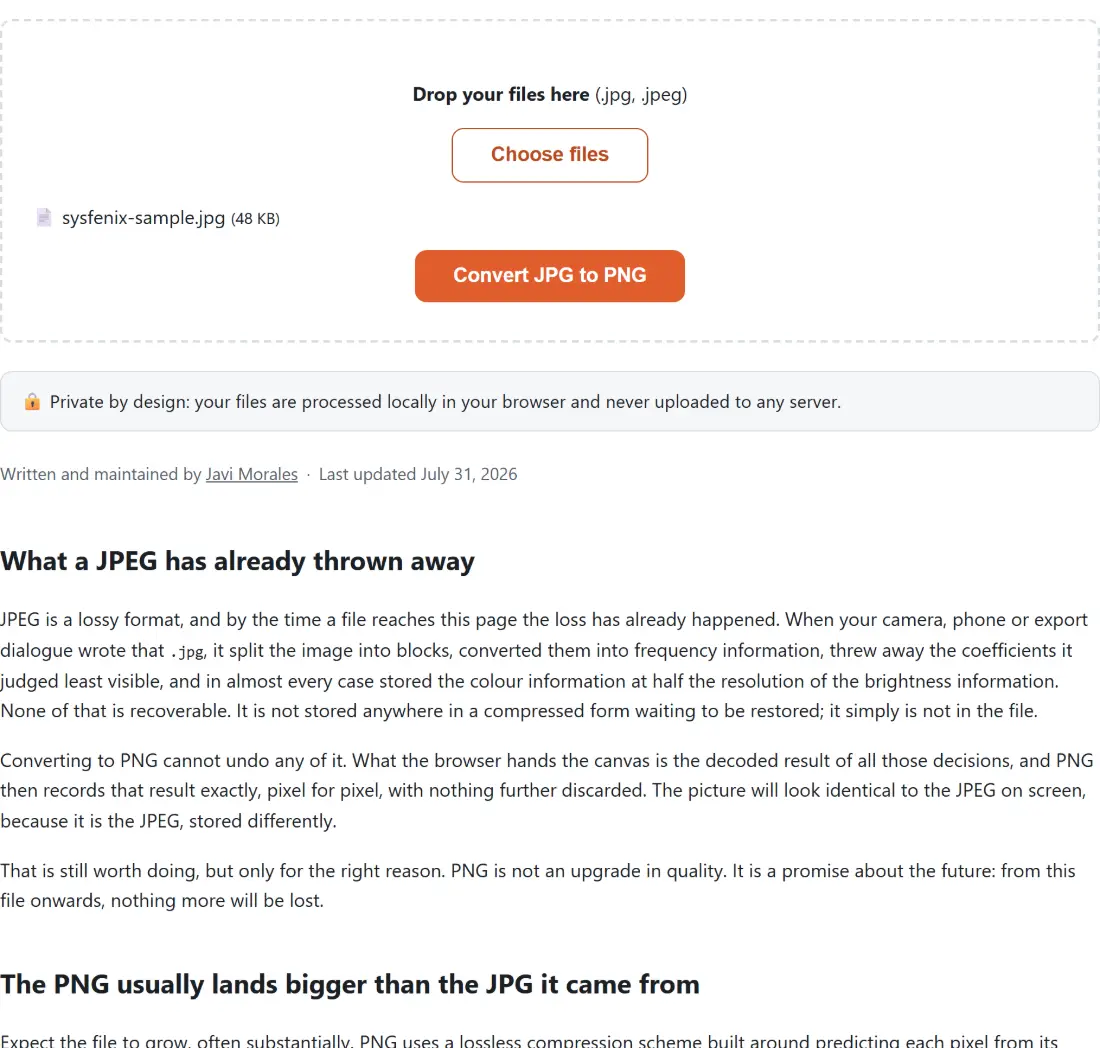
.jpgor.jpegfiles onto the box above, or click Choose files to pick them. There are no settings to configure: PNG is lossless, so there is no quality dial to get wrong. - Click Convert JPG to PNG. Each file is decoded and re-encoded in turn, and the progress bar moves once per completed image.
- Download the results one by one from the links that appear, then click Process another to empty the list before starting the next batch.