What this conversion does to your image bytes
A PDF page is a coordinate system with drawing instructions painted onto it, and one of those instructions is “put this image object inside this rectangle”. A JPEG, meanwhile, is already a stream of DCT-compressed data, and the PDF specification has a filter called DCTDecode whose entire meaning is “what follows is a JPEG, decode it the JPEG way”. Put those two facts together and the honest description of a JPG to PDF conversion falls out: the file’s compressed bytes get copied into a PDF image object untouched, and a page is created that draws it.
That is exactly what happens here. The tool calls pdf-lib’s embedJpg, which reads only the JPEG’s start-of-frame marker to learn the width, height, bit depth and channel count, then stores your original bytes verbatim behind Filter: DCTDecode. Nothing is decoded to pixels, nothing is re-encoded, and there is deliberately no quality option, because there is no encoder in the pipeline to give a quality number to.
The consequence people notice is file size. A converter that re-compresses can hand you a small PDF; this one cannot, because the pixels it writes are the pixels you gave it. Twelve phone photos of 3 MB each produce a PDF of roughly 36 MB. That is the correct result, and if the form you are filling in refuses anything over 10 MB, the second step is Compress PDF, which downsamples the embedded images on purpose.
A4, US Letter, or Fit to image
The two standard sizes are the real PDF point values: A4 is 595.28 by 841.89 points, US Letter is 612 by 792, at 72 points to the inch. Pick either and every image is scaled to fit inside that page with its aspect ratio intact, then centred, which leaves white margins on whichever pair of sides does not match. Worth knowing: the scaling runs in both directions. A small image is enlarged to fill the page, so a 600 pixel wide screenshot placed on A4 will look soft when printed. Nothing is ever cropped to make it fit.
“Fit to image” works on a different principle, and it pays to understand it before choosing it. The page takes the image’s pixel dimensions as its point dimensions, one pixel to one point. A 4032 by 3024 photo therefore becomes a page 4032 by 3024 points, which is 56 by 42 inches of paper. On screen nobody notices, because viewers fit the page to the window and all your pixels are still there. Send it to a printer and it gets scaled down to whatever paper is loaded, which usually looks fine but is no longer something you decide. So: “Fit to image” for photos, artwork and portfolios that will only ever be looked at, A4 or US Letter for anything a human might print or a government portal might validate.
Orientation only applies to the two standard sizes, and “Auto” is the setting to leave alone. It gives a landscape page to any image wider than it is tall and a portrait page to everything else, exact squares included. Forcing portrait on a landscape photo is perfectly legal and simply produces a small image between two fat margins.
Turning a stack of photos into one document
- Drop your
.jpgor.jpegfiles into the box above, or click to pick them. Each one becomes one page. - Check the list. Pages come out top to bottom in that order.
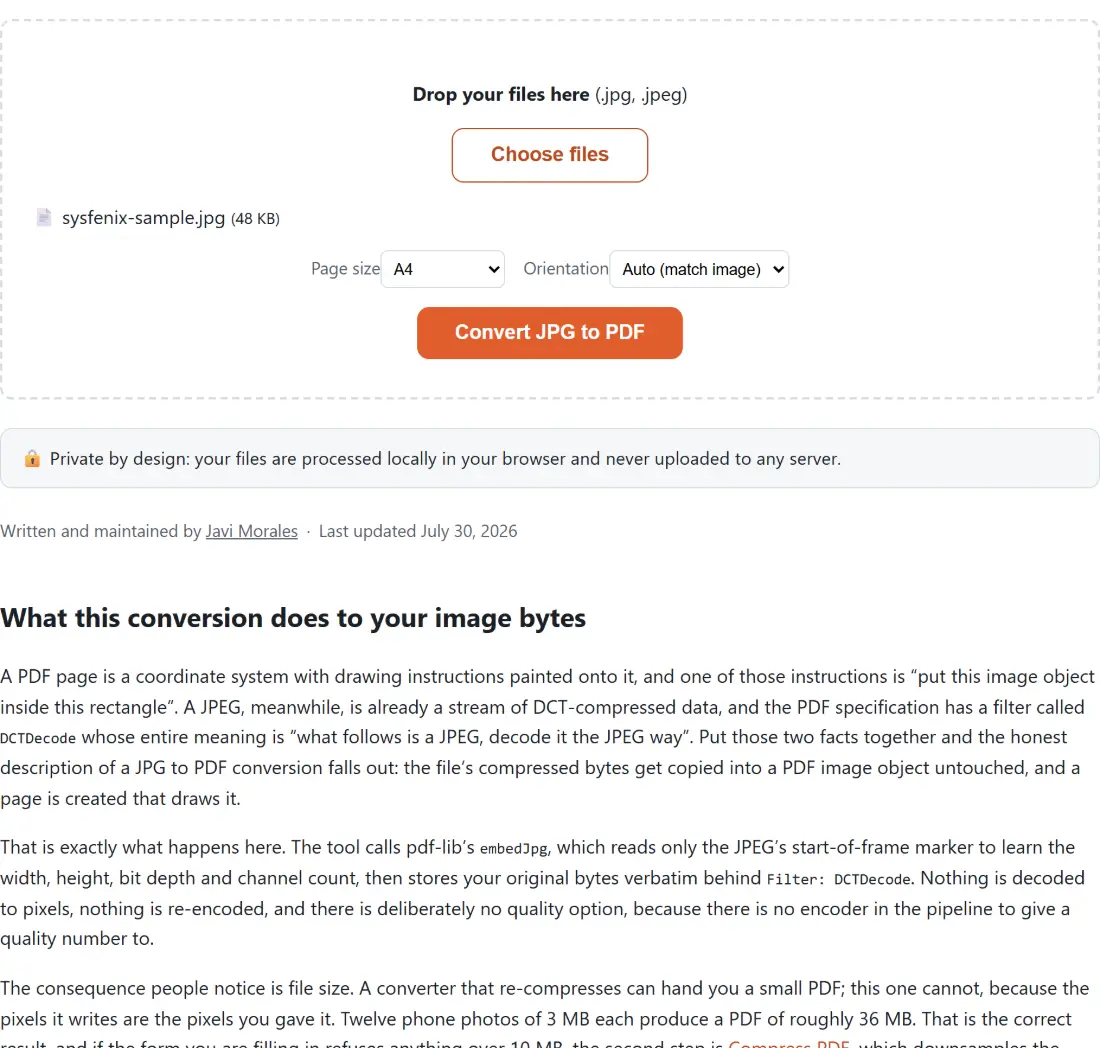
- Choose a page size and orientation, then click Convert.
Ordering is the step people trip on. The list order is whatever order your browser handed the files over in, there is no drag-to-reorder control, and adding a second batch appends it to the end. Renaming files with zero-padded prefixes (01-front.jpg, 02-back.jpg) before you add them is the dependable fix. One file keeps its own name with a .pdf extension; two or more are combined into a single combined.pdf.
When a JPEG refuses to embed
Because the embedder inspects the file’s own markers rather than trusting its extension, a few real inputs fail, all with the same generic “something went wrong” message. The most frequent cause is a file that is not a JPEG at all: a PNG or a WebP saved with a .jpg name has no JPEG start-of-image marker, so the embed step gives up immediately. Re-save it as a real JPEG, or use the sibling converter for its actual format.
The stranger failure is a CMYK JPEG that converts successfully but looks inverted, like a photographic negative. Photoshop writes CMYK JPEG values inverted relative to how CMYK image streams are conventionally stored inside a PDF, and there is no completely reliable way to detect which convention a given file follows, so the library always writes an inverting Decode array for CMYK input as a hedge. It is right more often than it is wrong, but when it is wrong the colours flip. Converting the scan to plain RGB first sidesteps the ambiguity entirely.
What it deliberately will not do
There is no OCR here, so the result is a picture of a document rather than a document: search finds nothing and text cannot be selected. Add a text layer afterwards with OCR PDF if that matters. There is also no cleanup pass, no deskewing, no contrast correction, no border detection, so a crooked phone photo stays crooked. And it builds a new PDF rather than appending to an existing one; to bolt these pages onto a contract you already have, convert first and then merge.