From a README to something you can hand to anyone
Markdown is where most documentation starts life, and it is also the format that travels worst. A .md file renders differently in every viewer, and anyone outside your team who opens it sees stray # and ** characters rather than a document. A PDF has the opposite property: it looks the same on every machine, it prints the way it looks on screen, and nobody needs to be told which app to open it with.
What this page really is, under the surface, is two tools this site already ships wired together. The parsing and sanitizing half is imported from Markdown to HTML, and the rendering and pagination half is imported from HTML to PDF. The only things this converter contributes of its own are a theme stylesheet and the output file name. That reuse is deliberate: the sandboxing described further down was security-reviewed once, for one tool, and inheriting it verbatim is safer than writing a second version of it.
Converting a README, step by step
- Drop one
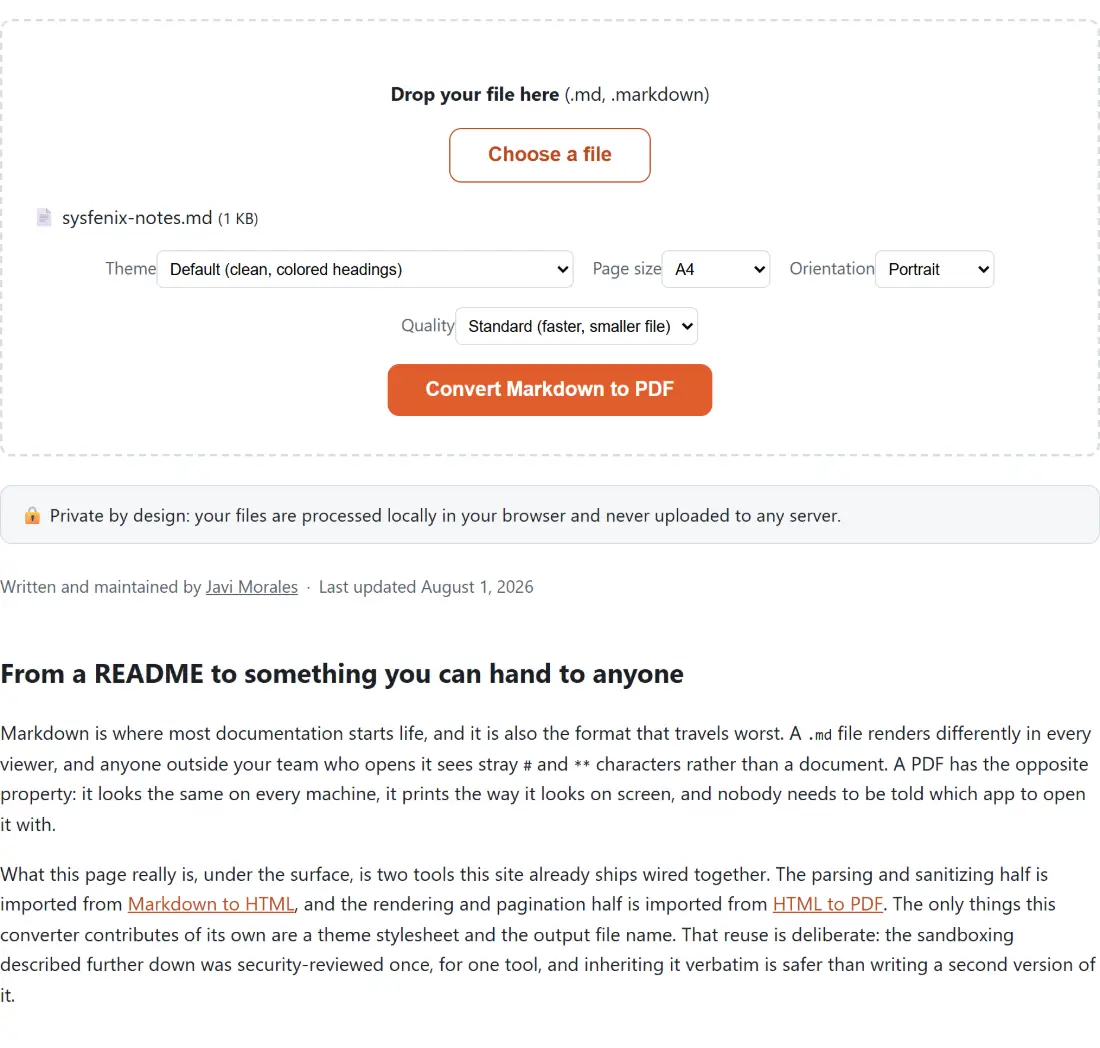
.mdor.markdownfile onto the box above, or press Choose a file. Only one file is converted per run, so if you drop several the first accepted one is the one that is kept. - Pick a Theme. The three choices are Default (clean, colored headings), Minimal (plain black & white, serif) and GitHub-like (matches how GitHub renders Markdown).
- Set Page size to A4 or US Letter, Orientation to Portrait or Landscape, and Quality to Standard (faster, smaller file) or High (sharper, larger file).
- Press Convert Markdown to PDF. The button repeats the page title word for word because the shared file shell uses the title as its action label.
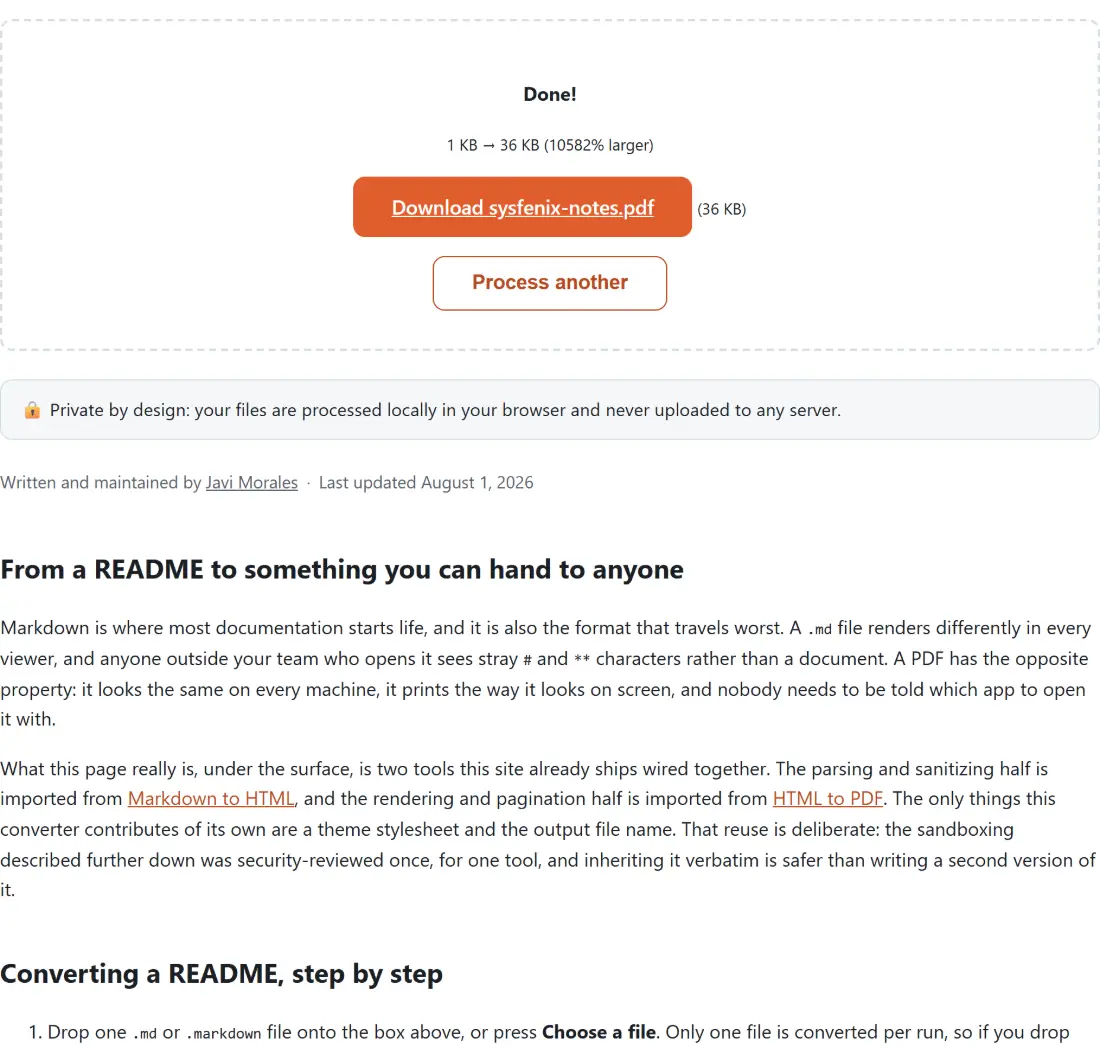
- Download the result. A file called
README.mdcomes back asREADME.pdf, because the module swaps the final extension for.pdfand leaves the rest of the name alone.
The three theme presets, and what each one actually restyles
All three themes begin from one shared base stylesheet: a 40 pixel body margin, 16 pixel text at a 1.6 line height, images capped at the container width, tables with collapsed borders, and preformatted blocks set to wrap rather than run off the edge. That last rule is why a long line inside a fenced code block folds onto the next line instead of being sliced away at the margin.
Each theme then overrides typography and color on top of that base. Default (clean, colored headings) uses a system sans-serif face, paints every heading and link a strong blue, rules the H1 with a two pixel underline, gives inline code and code blocks a pale slate background, and tints table headers a pale blue. Minimal (plain black & white, serif) switches to Georgia, removes every trace of color, sets headings at normal rather than bold weight, and underlines links, which is the only way a link is visible once the document is printed. GitHub-like (matches how GitHub renders Markdown) reproduces GitHub’s own reading view, with bordered H1 and H2 rules, GitHub’s blue for links, bordered gray code blocks, and a gray stripe on every second table row.
There is no free-form CSS box, and that is a schema limit rather than an oversight. The option format behind these pages supports only dropdowns, numbers and checkboxes, so a theme has to be a fixed stylesheet keyed by name.
Rasterized pages, and the trade-off you are accepting
Here is the honest part. The themed document is loaded into a hidden frame, captured into a single tall canvas, sliced by page, and each slice is written into the PDF as a JPEG at quality 0.92. The output looks exactly like the styled page, and it contains no text at all in the sense a PDF reader cares about. Searching inside it finds nothing, and you cannot copy a sentence out of it.
Quality is the knob that decides how sharp those pictures are. Standard captures at one device pixel per CSS pixel; High captures at two, which is four times the pixels and correspondingly heavier JPEGs. Neither setting turns the pages back into text. If selectable text is what you actually need, Text to PDF writes real glyphs into the document using Helvetica, one of the standard PDF fonts, but it only accepts .txt, so rename a copy first and expect your headings, tables and fenced blocks to come through as the raw # and | characters you typed rather than as formatting.
Where the page breaks land
Pagination is geometry and nothing more. The renderer works out how many source pixels fit into one page of the chosen size, then cuts the canvas into strips of exactly that height. On A4 portrait at Standard quality, the document is rendered 794 pixels wide and each page takes a shade under 1123 pixels of it, so a three thousand pixel document becomes three pages, the last one only partly filled.
Nothing in that process knows what a heading or a table row is. A line of text that happens to sit on a boundary is genuinely cut in half, top on one page and bottom on the next. There is no widow or orphan control to tune. The practical workaround is to change the geometry: switching Orientation to Landscape or Page size to US Letter moves every boundary, which is usually enough to push an awkward line clear of the seam.
Markdown that contains raw HTML
Almost every Markdown parser, this one included, passes raw HTML found in the source straight through to the output. That is convenient when you have hand-written a table, and dangerous when the Markdown came from somewhere you do not control. Two layers deal with it. The generated HTML is always run through DOMPurify, which strips script elements, on-event attributes and javascript-scheme URLs and cannot be switched off. Then the sanitized markup is loaded into a frame whose sandbox attribute carries only same-origin access, never the allow-scripts token, so that document has no scripting engine at all and inline handlers are never wired up.
If your source document is a Word file rather than Markdown, Word to Markdown converts a .docx first and takes a whole batch at once. And once you have several converted PDFs, Merge PDF Files joins them into one, or browse the rest of the PDF tools for splitting, signing and compression.