What a PDF password actually stops, and what it does not
The PDF specification has two passwords, and confusing them is the most common mistake in this whole area. The user password, often called the open password, is the one this tool sets: without it the document’s content streams are encrypted bytes and no reader can show you a single page. The owner password governs permissions inside a document that has already been opened, which is a far weaker and quite different promise.
So what you get here is real. The file will be refused by Acrobat, Preview, Chrome, Edge and essentially every mobile PDF app unless the exact string you chose is typed in. What you do not get is protection from someone who has the password. Once a recipient can open the document, they can screenshot it, print it to a fresh PDF, or save an unprotected copy. Encryption controls access; it says nothing about what happens after access is granted.
And the strength of that access control is your password, not the algorithm. A four-digit PIN on an AES-128 file is still a four-digit PIN. Send the password through a different channel from the file, otherwise a single compromised inbox holds both halves.
The cipher you get is AES-128, and we had to force it
Most PDF tools on this site are built on vanilla pdf-lib, though not all of them: Unlock PDF runs qpdf compiled to WebAssembly, and PDF to JPG renders pages with pdf.js. Whichever way, pdf-lib itself was never an option here. Its own README says it does not support encrypted documents, and it ships no encrypt() method at all, only an error type for detecting an encrypted input. So this one tool uses pdf-lib-plus-encrypt, an MIT-licensed fork that merges in a real implementation of the standard security handler with a browser-safe crypto layer. The other credible option on npm, muhammara, is a compiled native addon and cannot run in a browser at any price.
Reading that fork’s encryption code turned up something we would rather have not found. The library gives the caller no say in the cipher whatsoever. encrypt() throws away the version you pass it and substitutes the version string in the document’s own %PDF- header, then picks the handler from that: a 1.6 or 1.7 header gets the V4 handler with AESV2 and a 128-bit key, a 1.4 or 1.5 header gets 128-bit RC4 with no crypt filter at all, and anything else, including an old 1.3 file or a new 2.0 one, drops all the way to 40-bit RC4. The AES-256 branch wants the non-standard header string 1.7ext3, which nothing here can produce.
Left alone, that would mean the cipher protecting your document was decided by whatever software happened to write it years ago, which is not a defensible thing to hide behind a single “AES-128” label. So before encryption runs, this tool rewrites the header to 1.7. That is the honest fix rather than a trick: PDF 1.6 is the first version that defines the AESV2 crypt filter, so a file using one has to declare at least 1.6 to be conformant, and Acrobat bumps the version the same way when you apply 128-bit AES to an older document. The header is only a floor, readers take the higher of it and the catalog version, and not a byte of your page content is touched.
The result is that every file this tool writes carries the same encryption dictionary, whatever you fed it: /V 4, /R 4, /Length 128 and the AESV2 crypt filter on both streams and strings. Its own test suite now asserts exactly those entries in the emitted bytes for six different input header versions, which is the check that was missing before. Reopening the file with pdf.js was not enough on its own, because pdf.js opens a 40-bit RC4 file just as willingly as an AES-128 one and reports success either way. That round trip still runs, and still confirms the file refuses an empty password, refuses a wrong one, and returns the exact original page text for the right one.
The password travels in a .txt file, and why
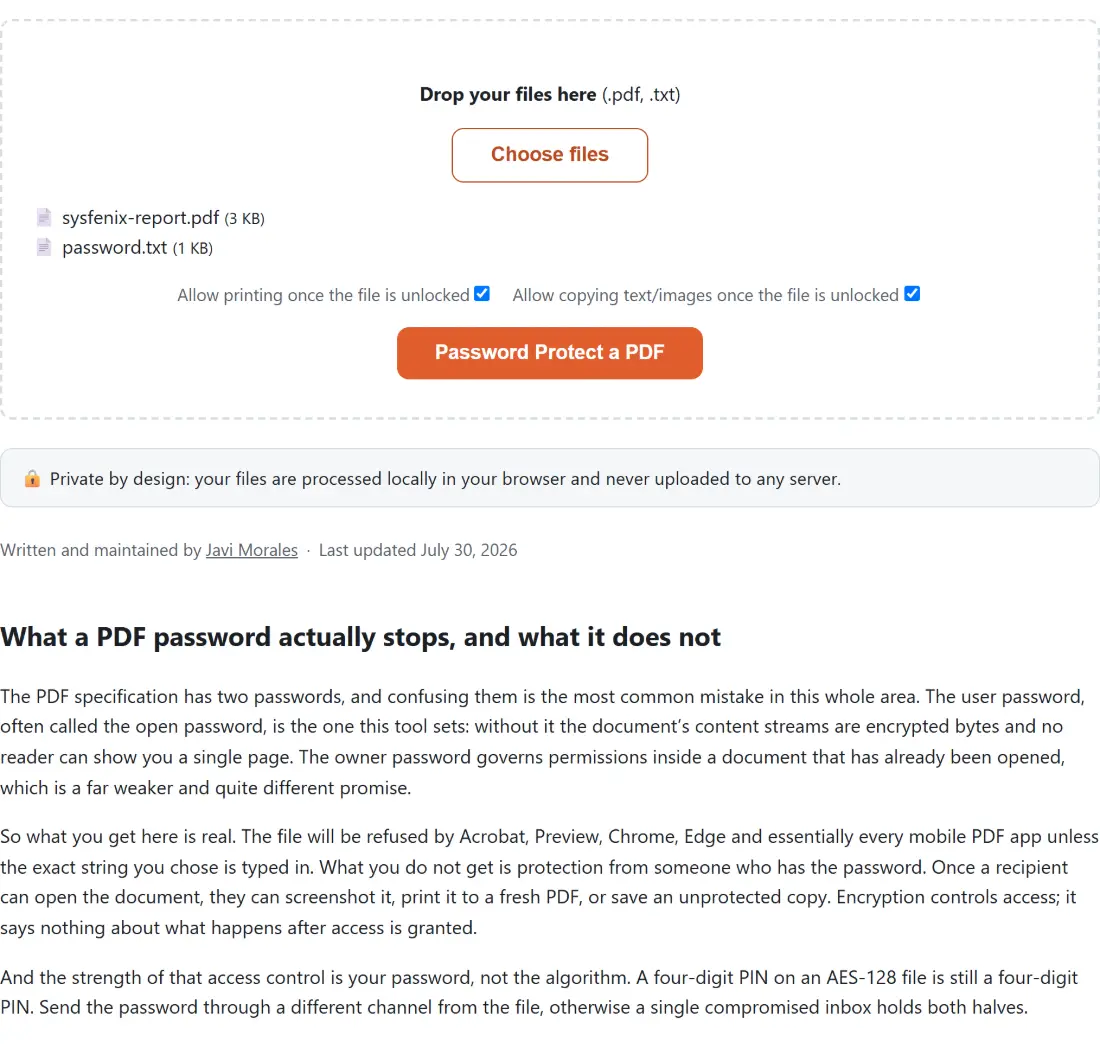
There is no free-text option type on this site, only dropdowns, number fields and checkboxes, so there is nowhere to type a password. Rather than build a one-off password box for a single tool, the password arrives as a second file: put it on the first line of a plain .txt file and drop that in alongside the PDF. Upload order is irrelevant, since the two are told apart by extension. Sign PDF already uses the same pattern to carry a signature image.
The password is taken as the first non-empty line, trimmed. Blank leading lines and trailing spaces are therefore harmless, but a password that genuinely ends in a space cannot be expressed this way. Upload the wrong combination, two PDFs or no .txt, and the error names which role is missing instead of guessing. Delete the .txt once the protected file exists.
Thirty-two characters, Latin-1 only: limits from the spec, not from us
The standard security handler’s password algorithm for revisions 2 through 4 pads or truncates whatever you give it into a fixed 32-byte buffer, and that buffer is Latin-1. Both limits come from the PDF specification.
Both are checked before encryption starts, because the library’s behaviour at the boundary is unhelpful. A 40-character password is not rejected, it is silently truncated, which means only the first 32 characters would ever be needed to open the file and nothing would tell you. An emoji or a Cyrillic character throws a generic complaint about invalid characters. So a too-long password is reported with its actual length, and a character outside Latin-1 is named as the cause. Thirty-two characters of mixed letters, digits and punctuation is a very strong password; the limit is not the weak link here.
Printing and copying flags are a request, not a lock
The two checkboxes only ever apply to somebody who already has your password. They set permission bits inside the encrypted document, and compliant readers honour them by greying out printing or refusing text selection. They add no second password and no second layer of encryption, and software that ignores the bits exists. Treat them as a clear statement of intent rather than as enforcement.
One thing we had to fix while building this is worth knowing, because it explains why those checkboxes default to on. If no permission object is passed to the library at all, it denies every restrictable bit by default. We checked with pdf.js’s own permissions query and got back an empty list. Someone who only wanted an open password would have shipped a document nobody could print, annotate or fill in. So every call now explicitly grants editing, annotating, form filling, accessibility extraction and document assembly, and only the two exposed checkboxes restrict anything.
Protecting a file, start to finish
- Save your password as the first line of a
.txtfile, in Notepad, TextEdit or any plain text editor. - Drop the PDF and the
.txtinto the box above together. - Decide whether printing and copying stay allowed once the file is unlocked. Both are on by default.
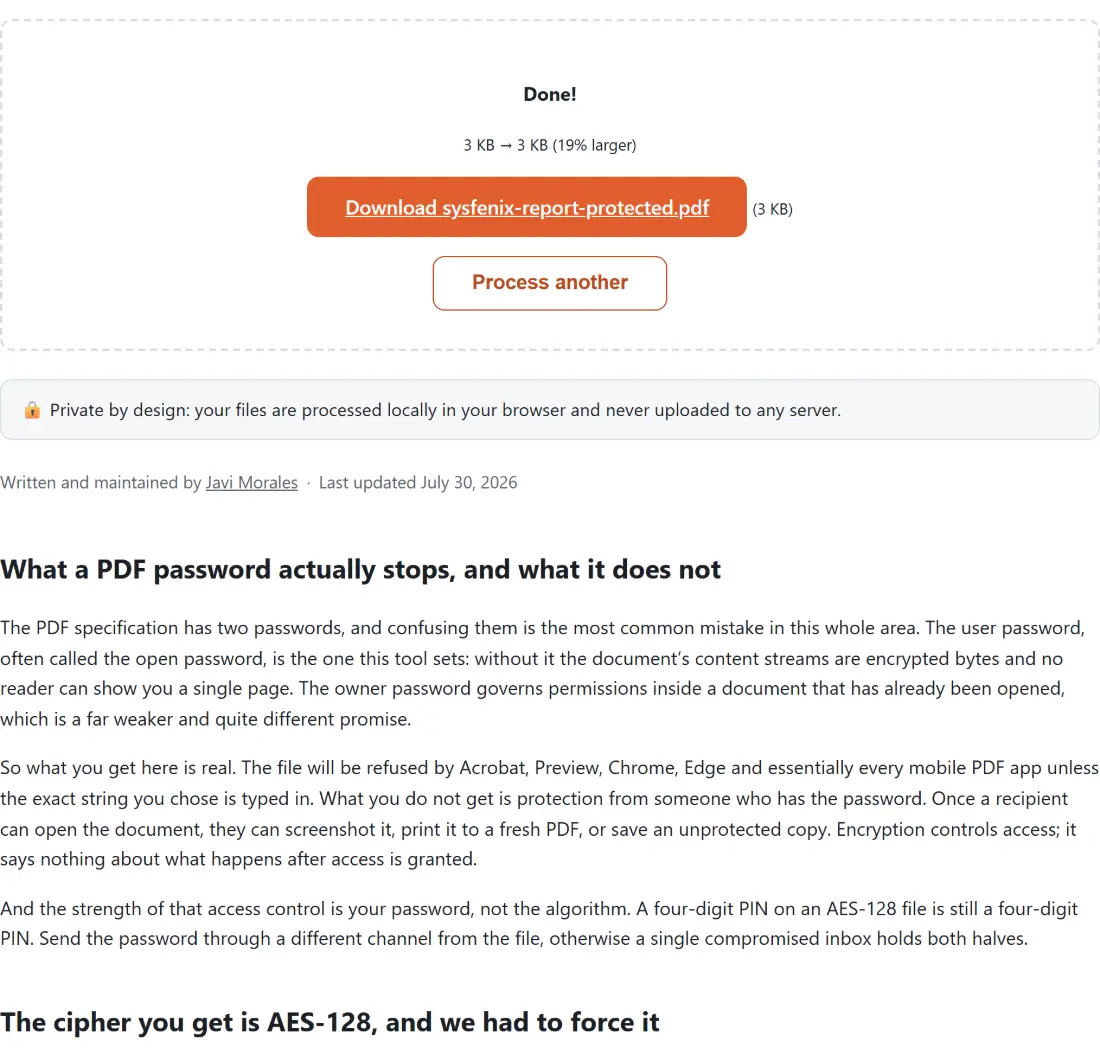
- Click the button. The download is your original file name with
-protectedadded.
There is no page limit, no daily quota and no paid tier, because your own device does the encryption; the practical ceiling is the memory available to the tab, and a several-hundred-page document is not a problem. If the file you drop in is already encrypted, open it with Unlock PDF and its current password first, then protect the result. And if what needs protecting is not a PDF at all, a photo, a spreadsheet, an archive, Encrypt a File does the same job with AES-256-GCM and no 32-character ceiling.