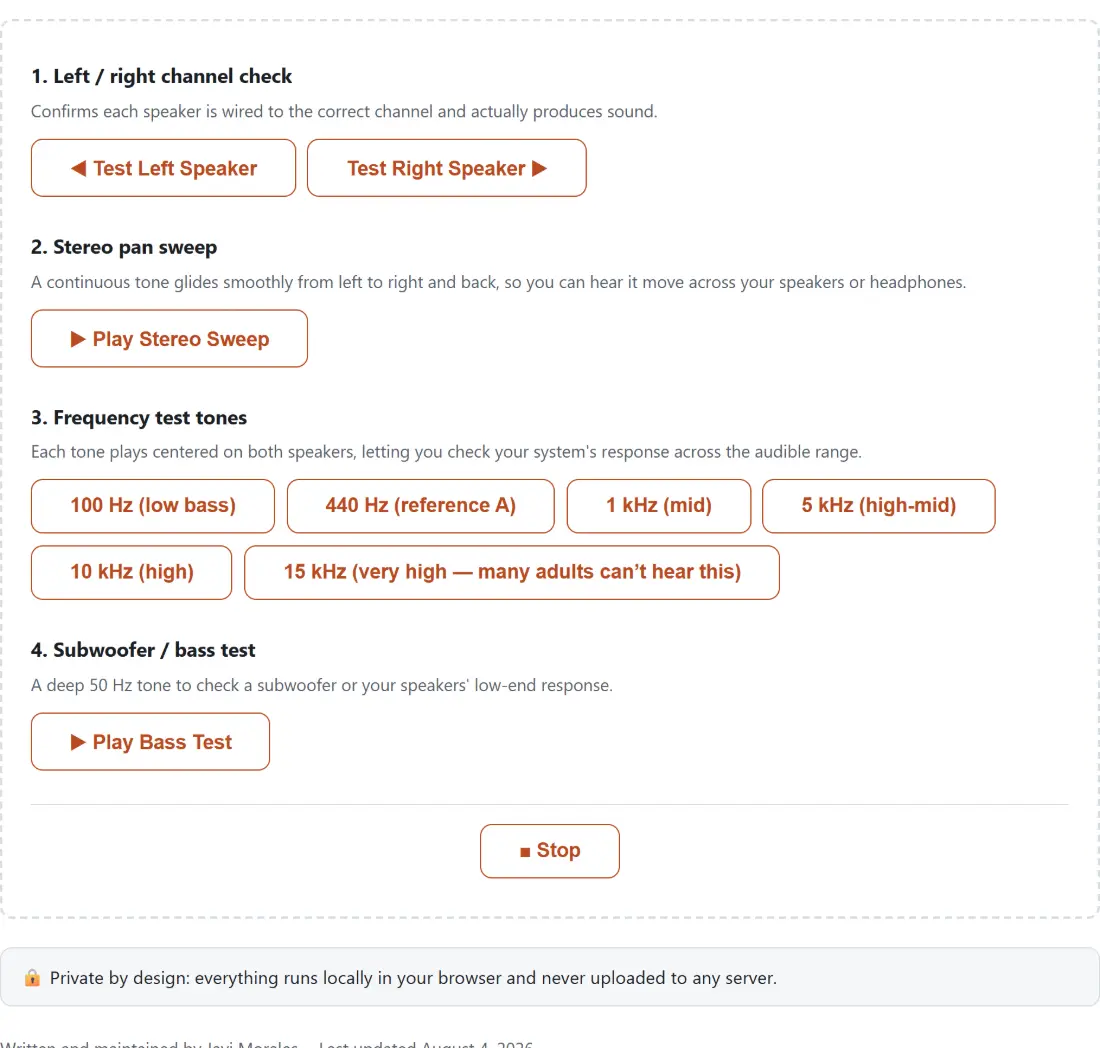
Four speaker checks in your browser, a hard left/right channel test, a stereo pan sweep, six frequency tones and a 50 Hz bass test. Nothing is recorded.
Confirms each speaker is wired to the correct channel and actually produces sound.
2. Stereo pan sweep
A continuous tone glides smoothly from left to right and back, so you can hear it move across your speakers or headphones.
3. Frequency test tones
Each tone plays centered on both speakers, letting you check your system's response across the audible range.
4. Subwoofer / bass test
A deep 50 Hz tone to check a subwoofer or your speakers' low-end response.
🔒 Private by design: everything runs locally in your browser and never uploaded to any server.
Written and maintained by Javi Morales·Last updated
Four checks, arranged by how quickly they find a fault
The page is four numbered sections, and the order is deliberate. Channel routing is the fault that accounts for most complaints, so it goes first. The pan sweep catches the subtler version of the same problem, a stereo image that is present but lopsided. The frequency tones test the driver itself rather than the wiring. The bass tone is last because it is the one most likely to produce silence for a perfectly good reason.
Working top to bottom means you rule out the boring explanation before you start suspecting the hardware, which in my experience is the right order about nine times out of ten.
Running the tests
Click Test Left Speaker, then Test Right Speaker. Each plays a short tone from that side only.
Click Play Stereo Sweep. A tone glides left to right and back while a live readout names the side it is currently on. The same button becomes Stop Sweep.
Click any of the six frequency buttons, which run from 100 Hz through 440 Hz, 1 kHz, 5 kHz and 10 kHz up to 15 kHz. Each plays centered on both speakers.
Click Play Bass Test for a steady 50 Hz tone aimed at a subwoofer or a large driver.
Click Stop to silence whatever is playing. It is greyed out when nothing is.
Only one thing can play at a time. Starting any test stops the previous one first, so you never end up layering two tones and misreading the result.
Why the sweep runs on a cosine
A pan sweep built out of a linear ramp has a corner at each end: the tone travels steadily to the right, then reverses direction instantly. That reversal is audible as a small jerk, and it draws your attention to the turnaround instead of to the middle of the range where imbalance actually shows up.
Modelling the position as a negative cosine gives a sweep that decelerates into each extreme and accelerates back out, so the motion is smooth all the way round. It also has a practical benefit, since a cosine is periodic the sweep can run indefinitely from a single ever increasing clock without any wrapping logic. Six seconds per cycle is slow enough to follow and fast enough not to feel like waiting.
Reading a failure correctly
Silence is ambiguous, and this is where most speaker tests mislead people. A dead left channel and a laptop that cannot reproduce 50 Hz look identical if all you record is that there was no sound. The four sections exist partly so that each result is interpretable on its own.
A missing side on the channel check is a real fault, either the cable, the balance setting or the driver. A tone you can hear but from the wrong side is a crossed pair, usually in the cable or in a surround configuration. Losing the 15 kHz tone while the rest are clear is far more likely to be your ears than your speakers, since high frequency sensitivity drops with age for everyone, and Hearing Test is the tool built to explore that properly. Losing the 50 Hz tone on a small device is normal physics.
When the fault is upstream of the speakers
If both channels sound right here but a particular file plays only in one ear, the problem is in the file, not the hardware. Convert Stereo to Mono has left-only and right-only downmix modes precisely for rescuing a recording where one channel is dead or empty.
For a controlled tone at an exact frequency rather than the fixed set here, Tone Generator covers 1 Hz to 20 kHz with four waveforms and a sweep. To see what is actually reaching a microphone rather than what is leaving a speaker, Audio Spectrum Analyzer draws the live input spectrum. Before a call, Webcam and Microphone Test checks the capture side in one place. The rest of the audio tools are on the audio hub.
See it in action
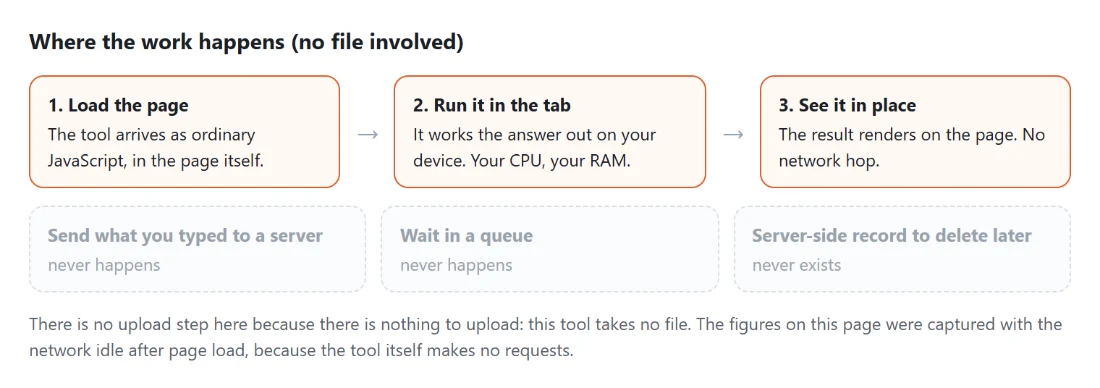
Speaker Test mid-process: a numbered sequence of speaker checks starting with the left/right channel test, which confirms each speaker is wired to the correct channel and actually produces sound.Where the work happens on a SysFenix page that has no file input at all: the tool arrives as ordinary JavaScript inside the page, works the answer out on your own device and renders it in place, so the upload, queue and server-side record a typical online tool needs never happen.
Frequently asked questions
Why does a tone stop by itself after a couple of seconds?
Every one-shot test, meaning the left check, the right check, each frequency tone and the bass tone, is scheduled to stop 2.5 seconds after it starts. That is long enough to hear whether a speaker responds and short enough that you are never left with a sine wave droning in the background because you clicked away. The pan sweep is the one exception, because judging a stereo image needs more than one pass, so it runs until you stop it or start a different test.
What exactly is routed where during the left and right check?
The tone is a 440 Hz sine wave sent through a stereo panner set to hard left or hard right. Nothing at all comes out of the opposite speaker, which is what makes the check conclusive rather than suggestive. If the sound arrives from the wrong side your channels are crossed somewhere in the cable or the operating system mixer, and if one side is silent that speaker or its connection is the fault.
How is the pan sweep generated?
The pan position of one continuously playing tone is recalculated on every animation frame from a negative cosine of elapsed time, which is why it glides rather than steps. A full cycle takes six seconds, starting hard left, reaching hard right at the three second mark and returning. Because a cosine is periodic the tool never has to wrap the value, it just keeps feeding it an ever larger elapsed time.
What is the live panned readout doing?
It reports the same pan value the audio is using, labelled left, center or right. Anything within 0.05 of dead center is called center rather than being tipped one way by floating point noise. It is there so you can tell whether the sound you are hearing agrees with the position the tool believes it is at, which is the actual test.
Why do the tones fade in and out instead of switching instantly?
A sine wave switched on at full volume starts mid waveform, and that discontinuity is heard as a click. The gain is ramped from silence to the playing level over about 20 milliseconds at the start and back down again before the oscillator stops. Twenty milliseconds is short enough to feel instant and long enough to remove the click, and it is the same trick audio software has always used.
My laptop produces nothing on the bass test. Is it broken?
Almost certainly not. The bass test is a steady 50 Hz tone, which is below what a laptop or phone speaker can physically move enough air to reproduce. Small drivers rolling off in the deep bass is a property of their size, not a fault. A subwoofer or a full range speaker set should give you an obvious low hum, and that is the case where silence does mean something is wrong.
Does any of this reach a server, and is anything recorded?
No. Each tone is synthesised live by an oscillator inside the page and sent straight to your output device, so there is no audio file at any point, nothing to upload and nothing to store. Refreshing or closing the tab silences everything immediately, and the tool never asks for microphone access because it only plays.
The buttons do nothing at all. What should I check?
Browsers block audio until the page has had a real user interaction, and clicking one of these buttons is exactly that, so the usual autoplay block should not apply here. Work outward instead, check the system volume and mute, check that the output device selected in your sound settings is the one you are listening to, and check the tab itself has not been muted, which browsers show with a small speaker icon on the tab.
Test what frequencies you can actually hear, from 20 Hz to 20 kHz, with per-ear checks and rough age-typical context. Free and private in your browser.
A precise online metronome with a 30 to 250 BPM slider, tap tempo, four time signatures and an accented downbeat that will not drift over a long session.
Watch your microphone's live frequency spectrum as 64 animated bars, with a selectable FFT size. Nothing is recorded, nothing is uploaded, no download.