Getting a beat going, and changing it mid-practice
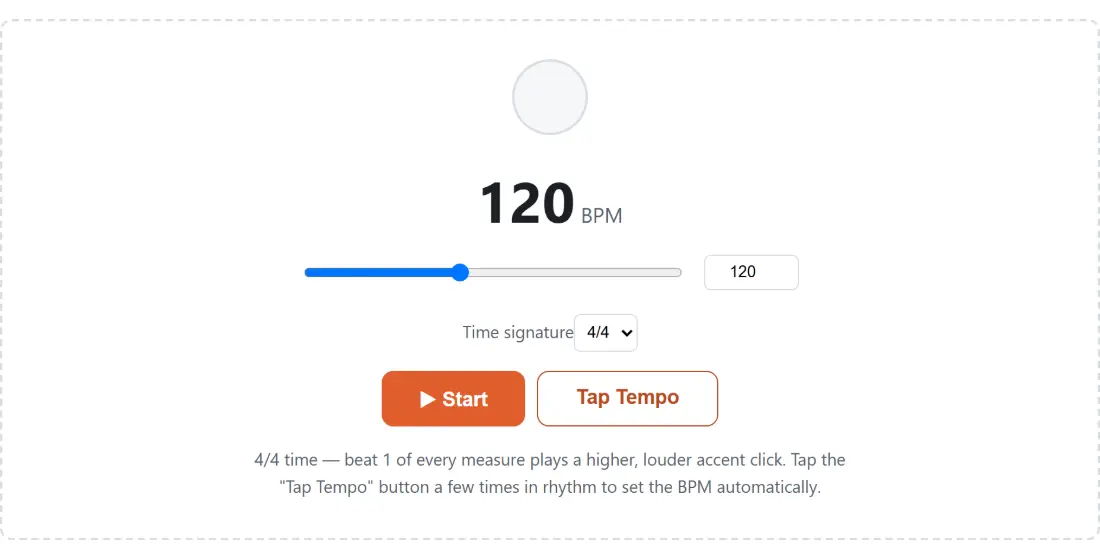
- Drag the BPM slider, or type a number into the box beside it, to set a tempo between 30 and 250. The large figure above the controls is the value currently in force; the page opens at 120.
- Pick a Time signature from the dropdown. The four choices are 4/4, 3/4, 2/4 and 6/8, and each one sets how many clicks go by before the accent comes round again.
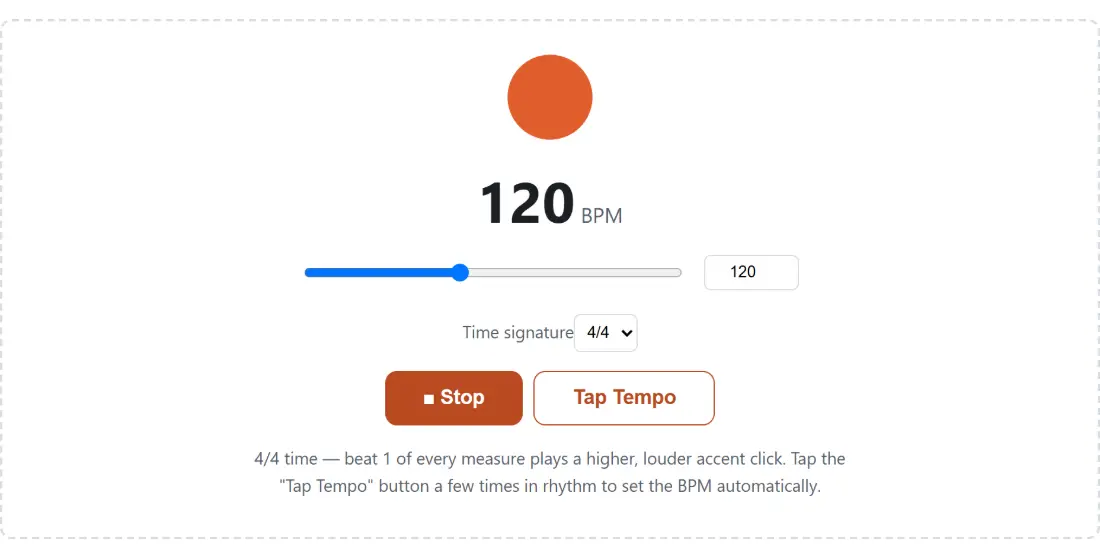
- Click ▶ Start. The button becomes ■ Stop, and the circle above the tempo readout lights up.
- Move the slider or switch the signature while it runs. Nothing restarts; beats that have not been queued yet pick up the new value.
- Click ■ Stop when you are finished, or just leave the page, which shuts the audio down for you.
Nothing here is uploaded, and no sound exists before you press start, because the browser audio context is not created until that click happens.
The lookahead scheduler behind the click
The obvious way to build a metronome is a repeating timer set to sixty divided by the tempo, firing a click each time. It is also the way that quietly ruins a long practice session. Browser timers are not precise, and every few milliseconds of lateness is added to the last, so the click you hear in minute twenty is not where the click in minute one implied it would be.
This tool splits the job in two, the way most serious Web Audio metronomes do. A timer fires every 25 milliseconds and does nothing audible at all. Its only job is to ask a pure function which upcoming beats fall inside the next 0.1 seconds of the audio hardware clock, then hand each of those to an oscillator with an exact start time attached. The playback instant is set by the audio clock, which is sample-accurate; the timer is merely the thing that remembers to look ahead. A tick that runs 15 milliseconds late still queues the same beats at the same moments.
That split is why the scheduling decision could be tested at all. It takes a clock value as an argument rather than reading one, so the test suite feeds it synthetic times, including a deliberately late tick that has to catch up by queueing three beats at once. The oscillator side is not tested, and cannot honestly be: there is no real audio clock in a Node test runner, and no way here to independently measure audible timing.
There is a consequence to that short lookahead. When you drag the slider, beats already sitting in the queue keep their old spacing, so the change lands a fraction of a second later rather than instantly. Switching signature mid-run behaves similarly, and the beat counter does not jump back to one; it simply wraps at the new measure length, which sorts itself out within a beat or two.
Tap Tempo, and why it forgets after two seconds
Half the time you do not have a number, you have a feel. Click Tap Tempo in rhythm and the tool timestamps each click, averages every gap in the current run, converts that to beats per minute and clamps the result into the 30 to 250 range. Two taps are enough to produce a figure; more taps make it steadier, because they all feed the same average.
The two-second rule matters more than it sounds. If you stop tapping and come back later, that long pause would be folded into the average as though it were a musical interval and drag the tempo down absurdly. So any gap longer than two seconds throws the previous run away and starts counting again from that tap. The button label shows the running count, so you can see when it has reset.
If tap tempo is the whole reason you came, the dedicated BPM Counter is the better fit: it accepts taps from any key as well as the pad, averages over a rolling window of the last eight intervals rather than the whole run, and puts a consistency score next to the number so you can see how steady your tapping actually was.
1500 Hz on the downbeat, 1000 Hz on the rest
An accent that only exists on screen is not much use when you are looking at sheet music. Beat one of each measure is generated at 1500 Hz with a peak gain of 0.7; every other beat is 1000 Hz at 0.45. Both are plain sine tones lasting fifty milliseconds, ramped down to near silence rather than cut off, which is what keeps them from clicking in the unwanted sense of the word.
The visual side is deliberately simple. The circle sits lit while the metronome runs and swells to its largest, darkest form on the downbeat, then returns to the smaller lit state for the rest of the measure. So what you actually see is the measure boundary, not every individual beat. If you want a steady reference pitch to tune against rather than a percussive click, the Tone Generator holds a continuous tone at any whole frequency from 1 Hz to 20 kHz.
Four time signatures and what 6/8 really means here
Treat the four options as measure lengths rather than full notation. 4/4 gives four clicks per measure, 3/4 gives three, 2/4 gives two, and 6/8 gives six. What 6/8 does not do is change the note value the tempo refers to. The BPM number is always clicks per minute, so setting 6/8 at 120 gives you 120 evenly spaced clicks a minute grouped in sixes, not 120 dotted-quarter pulses. If you think in dotted quarters, set the click tempo to three times the pulse you want and accept that every eighth note gets a click.
There is no subdivision control, no swing, no count-in, no tempo ramp and no saved preset list. That is a genuine limit rather than an oversight worth pretending around, and if you need those, a dedicated practice app is the honest answer. What is here is a metronome that starts instantly, keeps its tempo, and costs nothing.
For the rest of the browser-based audio kit, including tuners, generators and analysers, the audio tools hub lists them all, and the audio tools guide walks through which one to reach for when.