The result is text, and only text
Base64 can carry any bytes at all, but this page only finishes the job when those bytes turn out to be readable text. After the encoded string is converted back into a byte sequence, the bytes are handed to a strict UTF-8 decoder, and a sequence that is not valid UTF-8 makes the run fail instead of returning something garbled.
That is a deliberate boundary rather than a limitation to apologise for. It means an accented name, an emoji or a line of Japanese in a payload comes back exactly as it was written, because the bytes are reassembled with the same UTF-8 rules that produced them. It also means a Base64 blob that is really a PNG, a ZIP or a font will not decode here, and you want it to fail loudly in that case rather than dumping several megabytes of unprintable characters into a text box.
Pasting a value and reading it back
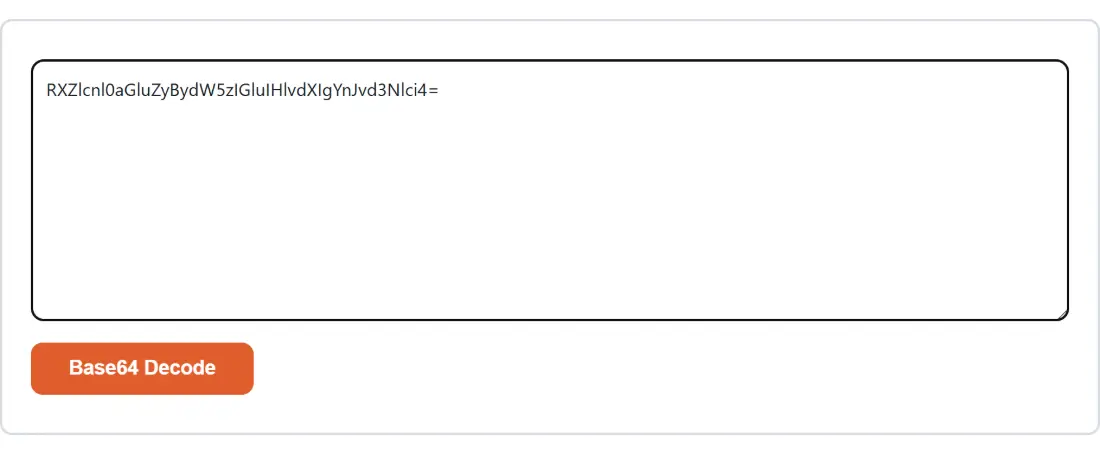
- Paste the Base64 into the box above. Standard or URL-safe, padded or not, on one line or wrapped across fifty, all work.
- Click Base64 Decode. The button stays disabled while the box is empty.
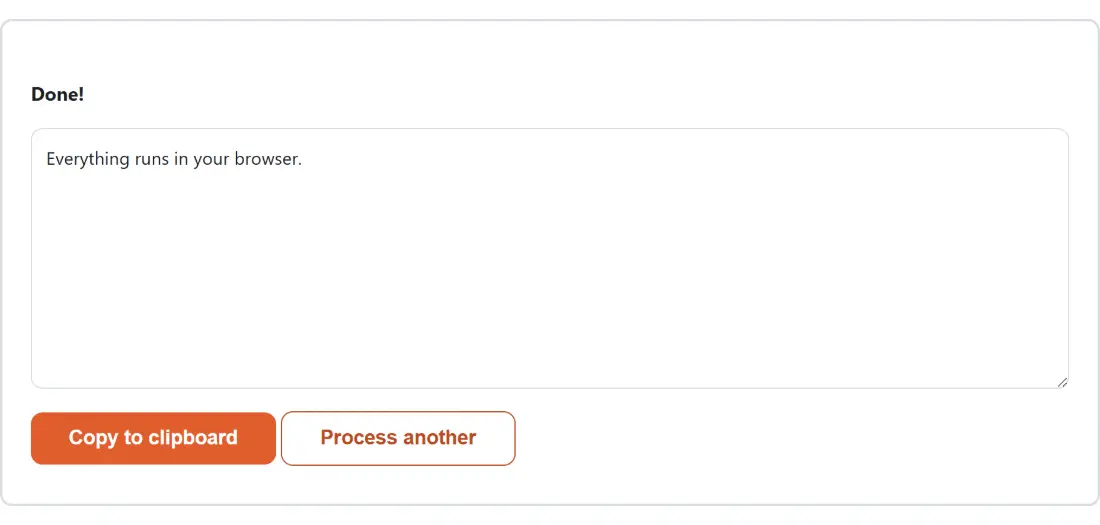
- Read the decoded text in the panel that replaces the form, and take it with Copy to clipboard.
- Click Process another to clear the box and decode something else. The form does not stay on screen alongside the result, so this is the way back.
Whitespace, hyphens and underscores are handled before anything else
Three normalisations run before the decoder ever sees your input, and between them they cover the great majority of pastes that would otherwise fail.
All whitespace goes first, everywhere in the string, not just at the ends. Line-wrapped blocks, indented blocks and blocks with a stray space in the middle all collapse to one continuous run of characters.
Then the URL-safe alphabet is translated back. Standard Base64 uses + and / as its last two characters, but neither survives a URL intact, so a variant swaps them for - and _. JWT segments use it, signed URL parameters use it, and filenames use it. Every - becomes + and every _ becomes /, unconditionally, which is safe precisely because standard Base64 can never legitimately contain either one.
Padding arithmetic, and the length that can never be valid
Base64 encodes three bytes into four characters, so a valid encoded length is always a multiple of four, and = characters are appended to reach it. Since so many systems drop that padding, the padding here is recalculated rather than assumed:
- A length that already divides by four is left alone.
- Two characters past a multiple of four gets
==appended. - Three characters past gets a single
=. - One character past a multiple of four is rejected, because no valid Base64 string can have that length.
That last case is the useful one for debugging. If your paste is refused on length, you are not looking at a padding problem you can fix by adding equals signs; you are looking at a string that lost characters somewhere, usually to a truncated copy, a wrapped terminal, or a value that was cut short in a log.
The prefixes you have to strip yourself
Nothing on this page tries to be clever about what surrounds your Base64, so a few very common wrappers have to come off before pasting:
- A
data:URI. Thedata:image/png;base64,at the front contains a colon, a semicolon and a comma, none of which are valid Base64, so the whole thing is rejected. Paste only the part after the comma. If it is an image, Image to Base64 will take the full URI as it stands and preview the picture instead. - The word
Basicfrom anAuthorizationheader. Paste only the encoded portion that follows it, which decodes to a username and password separated by a colon. - Percent-encoding. A Base64 value that has travelled through a URL often arrives with its padding written as
%3D, and the percent signs are not valid Base64 characters. Run it through URL Decode first, then bring the result here. - PEM
BEGINandENDlines, for the reason covered in the questions below.
In practice this short list accounts for most of the pastes that look like Base64 and refuse to behave, and checking it takes less time than reading an error would.
The same decoder the JWT page calls
The function behind this page is not exclusive to it. The site’s JWT Decoder imports this exact decoder and runs it on the header and payload segments of a token, which is a reasonable proof that the URL-safe handling and the padding arithmetic described above hold up against real tokens rather than against tidy examples. It also means there is no reason to decode a JWT segment by segment here: paste the whole token there and get the header, the payload and the expiry status in one go.
Coming the other way, Base64 Encode is the mirror of this page. It always writes the standard alphabet with padding, so anything it produces decodes here unchanged, and anything URL-safe you bring from elsewhere is translated on arrival.