The phase list a workout expands into
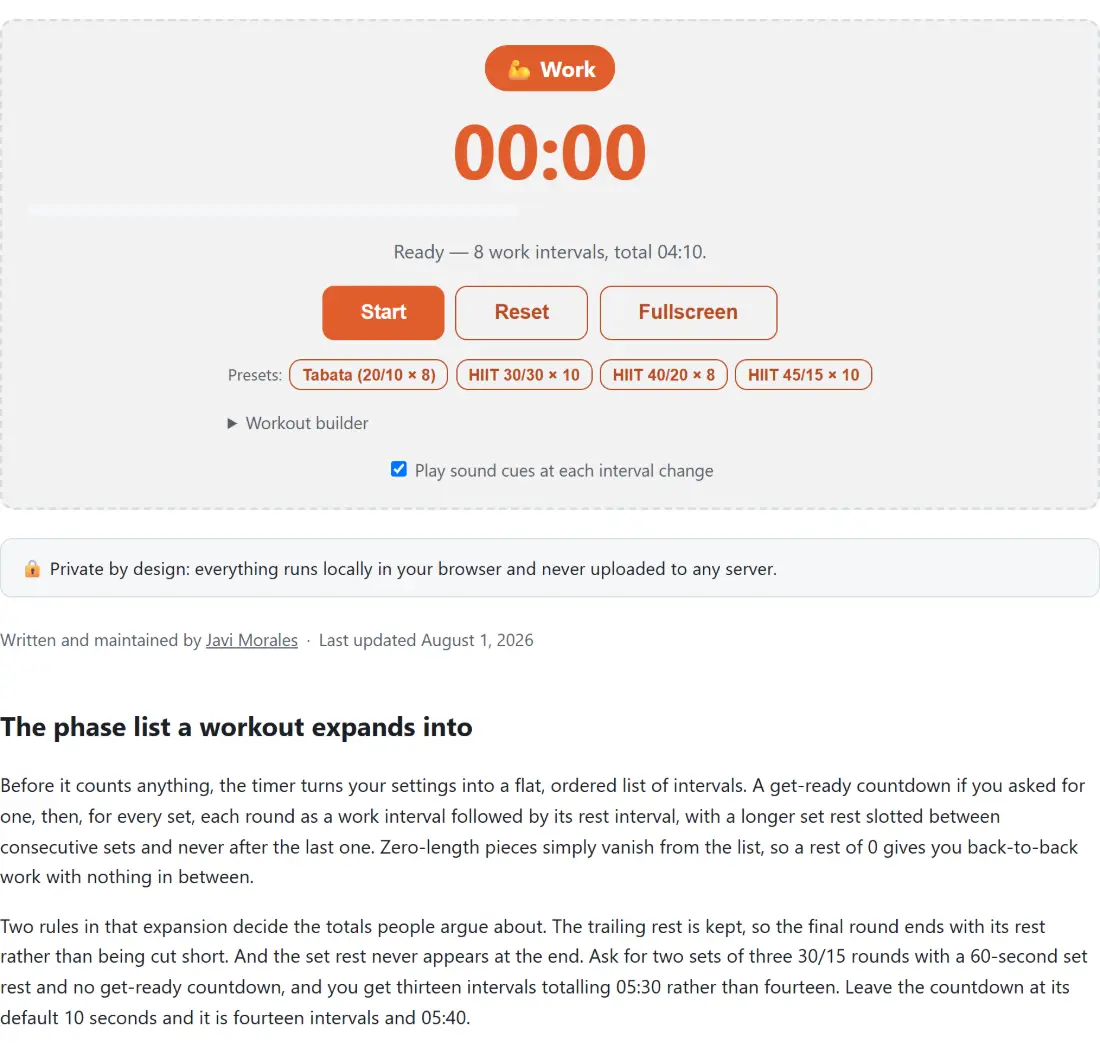
Before it counts anything, the timer turns your settings into a flat, ordered list of intervals. A get-ready countdown if you asked for one, then, for every set, each round as a work interval followed by its rest interval, with a longer set rest slotted between consecutive sets and never after the last one. Zero-length pieces simply vanish from the list, so a rest of 0 gives you back-to-back work with nothing in between.
Two rules in that expansion decide the totals people argue about. The trailing rest is kept, so the final round ends with its rest rather than being cut short. And the set rest never appears at the end. Ask for two sets of three 30/15 rounds with a 60-second set rest and no get-ready countdown, and you get thirteen intervals totalling 05:30 rather than fourteen. Leave the countdown at its default 10 seconds and it is fourteen intervals and 05:40.
Presets first, then the workout builder
- Click a preset if one fits: Tabata (20/10 × 8), HIIT 30/30 × 10, HIIT 40/20 × 8 or HIIT 45/15 × 10. Every preset is a single set with no get-ready countdown, which is why the Tabata button gives a flat 04:00.
- Otherwise open Workout builder and set Prep (sec), Work (sec), Rest (sec), Rounds, Sets and Set rest (sec). Values commit when you leave the box, not on every keystroke, so a half-typed number is never snapped to a limit under your fingers.
- Press Start. The whole panel takes on the colour of the current interval and the badge above the clock names it.
- Use Skip to end an interval early, Pause and Resume to break, and Reset to return to idle so the builder unlocks again.
- Press Fullscreen for a clock sized off the viewport rather than the page, readable across a gym floor. Press it again to come back.
- Type a name into the routine box and press Save routine to keep the current settings for next time.
The trailing rest, and why one Tabata is exactly 04:00
A Tabata block is 20 seconds hard, 10 seconds easy, eight times through. Coaches call that four minutes, and the arithmetic only agrees if you count the final rest: eight lots of 30 seconds is 240 seconds. Drop that last rest and you get 03:50, which is why some timers quietly disagree with the stopwatch on your coach’s wall.
This one keeps it, so the preset totals are the round numbers you would expect. Tabata comes to 04:00 over 8 work intervals, HIIT 30/30 × 10 and HIIT 45/15 × 10 both come to 10:00, and HIIT 40/20 × 8 comes to 08:00. The untouched default is the odd one out at 04:10, because it adds a 10-second get-ready countdown the presets leave out.
The builder’s limits are wide but real. Work is capped between 1 second and an hour, prep at 60 seconds, rounds at 100 and sets at 50, and fractional entries round to whole seconds.
One anchor timestamp instead of a tick counter
The counting itself reuses the machinery behind our online timer. Pressing Start records one real timestamp for the entire workout; every frame afterwards recomputes the total elapsed time from the clock and asks which interval that lands in. Nothing accumulates, so nothing drifts.
The payoff shows up when a phone locks or a tab goes to the background and the browser throttles it down to save battery. A tick-counting timer loses whatever it missed. This one does not care how many updates were skipped: 100 seconds into the default workout is round 4 of 8 with 20 seconds to go, whether the tab was awake the whole time or not, and it lands there in a single catch-up update the moment you return.
The honest caveat is audio, not time. Browsers throttle sound in hidden tabs too, so a cue can fire late or be held until you come back. The interval you are on is never wrong; the beep marking it might be. For a phone workout, keep the tab in front with the screen on.
Four colours, six cues and a tab title that counts down
The whole widget tints to match what you are doing: green for work, blue for rest, amber for the get-ready countdown and purple for the longer rest between sets, with an emoji badge naming the interval and a progress bar filling underneath it. In fullscreen that colour becomes the entire screen, which is far easier to read mid-burpee than a number in a corner.
Six cue patterns are defined, all generated on the fly with the Web Audio API rather than loaded as sound files: a rising two-note tone into work, a falling one into rest, a lower pair for the set rest, a single pip on each of the last three seconds of any interval, and a three-note fanfare at the end. The sixth, a plain tone for the get-ready countdown, is written but never actually heard, because a cue only fires when the timer crosses from one interval into the next and the countdown is always the first one in the list. Browsers block audio until you interact with the page, so pressing Start is what unlocks the rest of them.
Your browser tab title is rewritten too, showing the current interval and its countdown, and it is restored when you leave the page. If you want that behaviour for desk work in 25-minute blocks instead of seconds-long bursts, the Pomodoro timer is the better shape.
Saved routines, and what a locked workout will not let you change
Saving a routine writes its name and its six numbers to this browser’s local storage. Each stored routine shows its work/rest split and round count beside the name, loads back with one click, and is deleted with the ✕. Saving over an existing name overwrites it, and a corrupted or hand-edited entry is discarded rather than allowed to break the page. None of it is synced, so a different browser, a different device or a private window starts empty.
Once a workout is running or paused, the six builder boxes and the preset buttons lock until you press Reset, which is the one piece of friction the tool imposes on purpose. Loading a saved routine is the exception: it swaps the numbers in and returns the timer to idle in one click. Closing or refreshing the tab, on the other hand, ends the workout outright, because nothing is running on a server to come back to. Pair a session with the numbers from the Heart Rate Zone Calculator if you are training to a target intensity, and browse the testers and widgets hub for the rest of the timers.